Introducing Passwordless Backups
von Tobias Müller
am
The Problem
With the usage of twonly, you start collecting precious memories, chat histories, and friends. To prevent losing them in case of a phone loss, a secure recovery mechanism is needed. Typically, this is not a huge issue, as you can either use your phone number or email to reset your password, like in Snapchat. This is because apps like Snapchat store your data unencrypted on their servers, meaning governments or employees can easily access it.
But as twonly is strongly committed to building a real privacy-friendly alternative, all data uploaded, including your backup is encrypted using a secret key that only you know, preventing the server from ever seeing your personal data. Currently we implemented a similar approach to Threema's Safe where this secret key is derived from a password you choose. But this approach has one major flaw: it relies on you remembering your password, and believe it or not, users frequently forget them.
To solve this, we spent the last few months designing and implementing a new protocol that lets you recover your account without remembering any password, while still fully protecting your privacy and personal memories. If you're interested in the cryptographic details, check out my technical blog post about it.
Setting It Up
Setting up passwordless backup takes about a minute. You select your trusted friends, choose an optional second factor, and you're done.
Picking Your Trusted Friends
The first step is selecting the friends you trust to help you recover your account. These must be verified contacts, friends whose identity you've confirmed via QR code, as described in our mutual friends blog post. This is important because your secret key gets split and distributed to these friends, so you need to be sure they are who they say they are and not someone impersonating them or a compromised server performing a man-in-the-middle attack.
You need to select at least a few friends, and you can choose how many of them are required during recovery. For example, if you pick six friends and set the threshold to two, any two of them can help you get your account back. The extra friends are there as a safety net in case someone loses their phone or becomes unreachable.
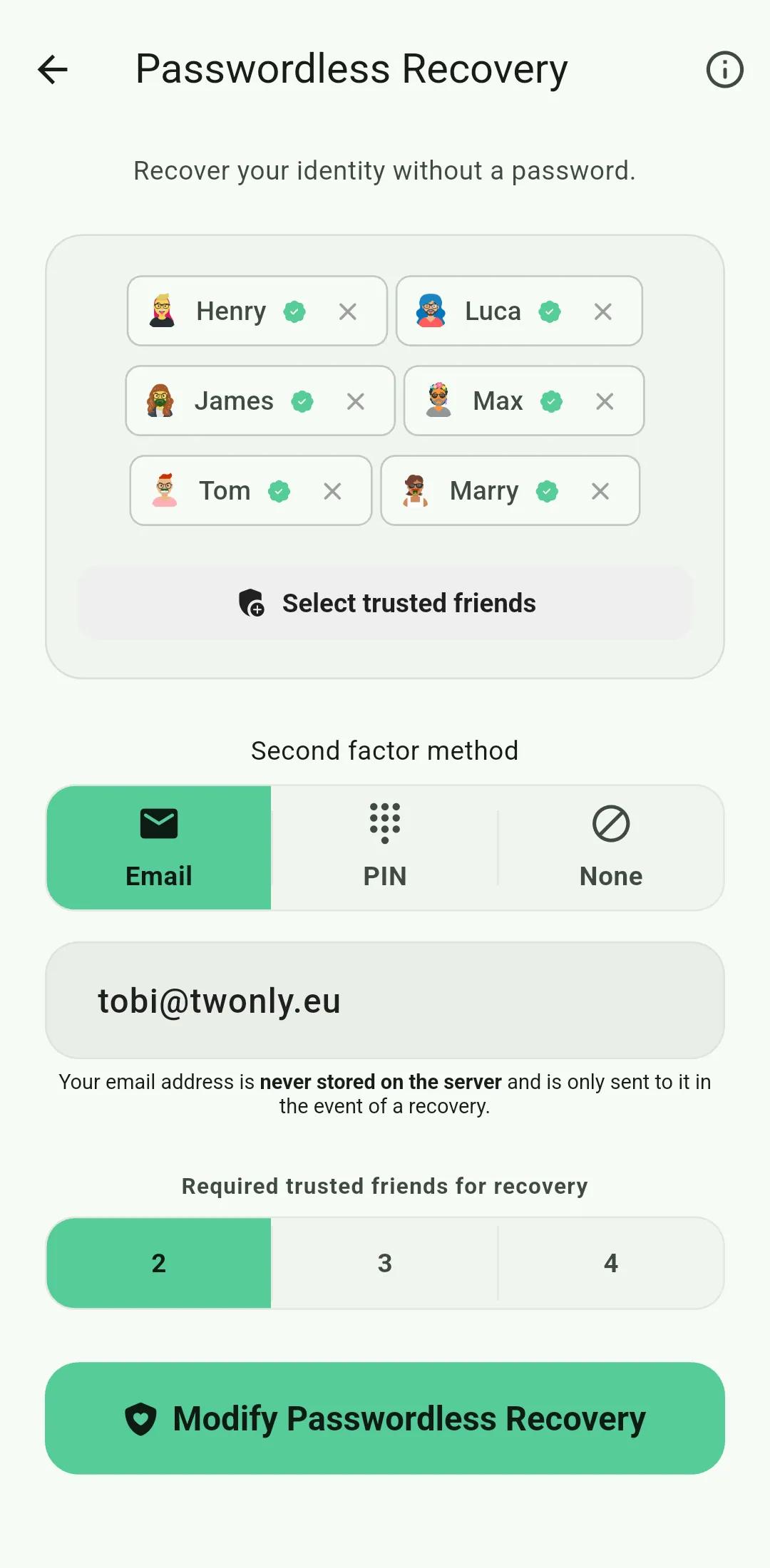
The setup screen with friends and second factor
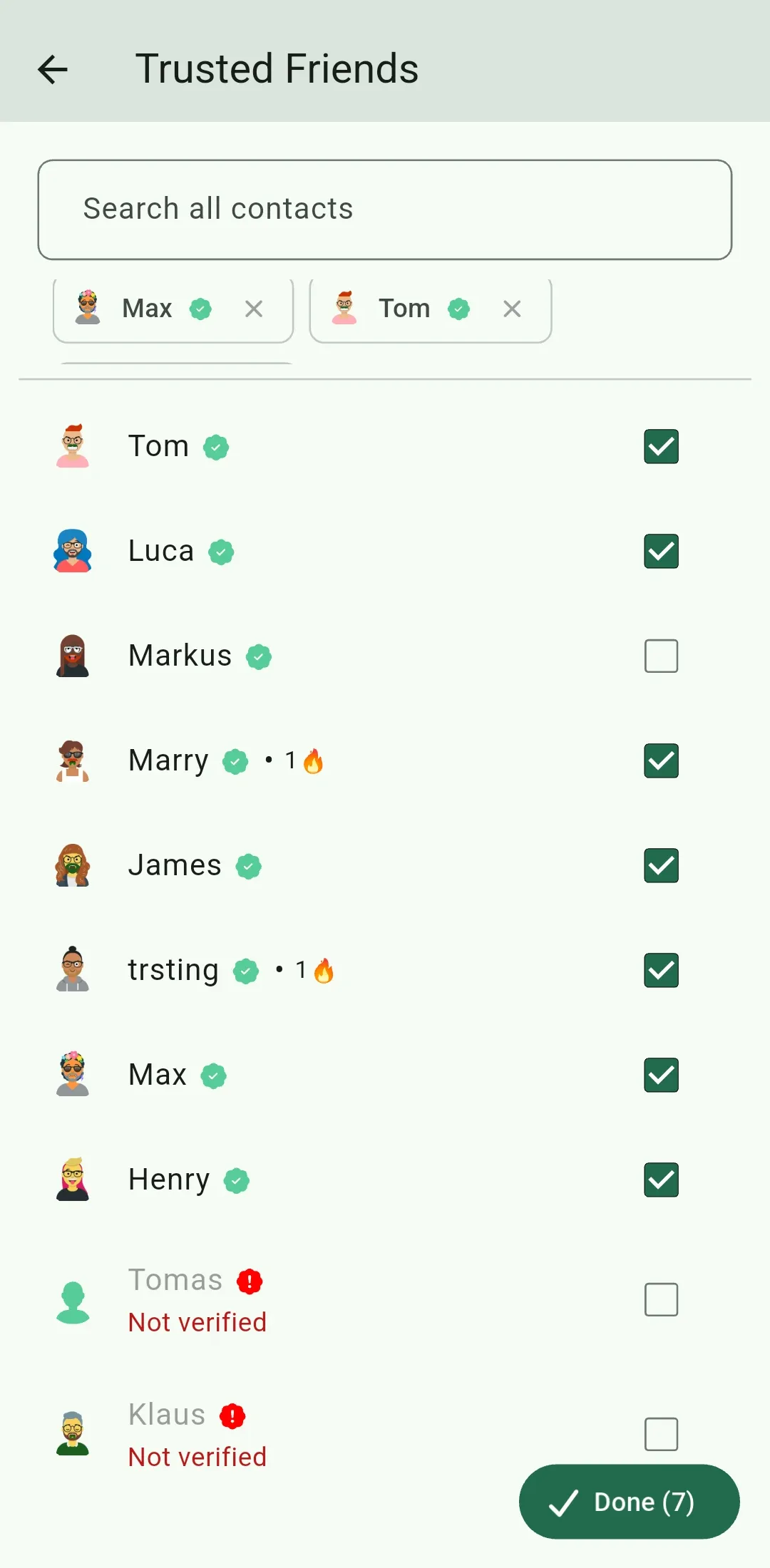
Only verified contacts can be selected
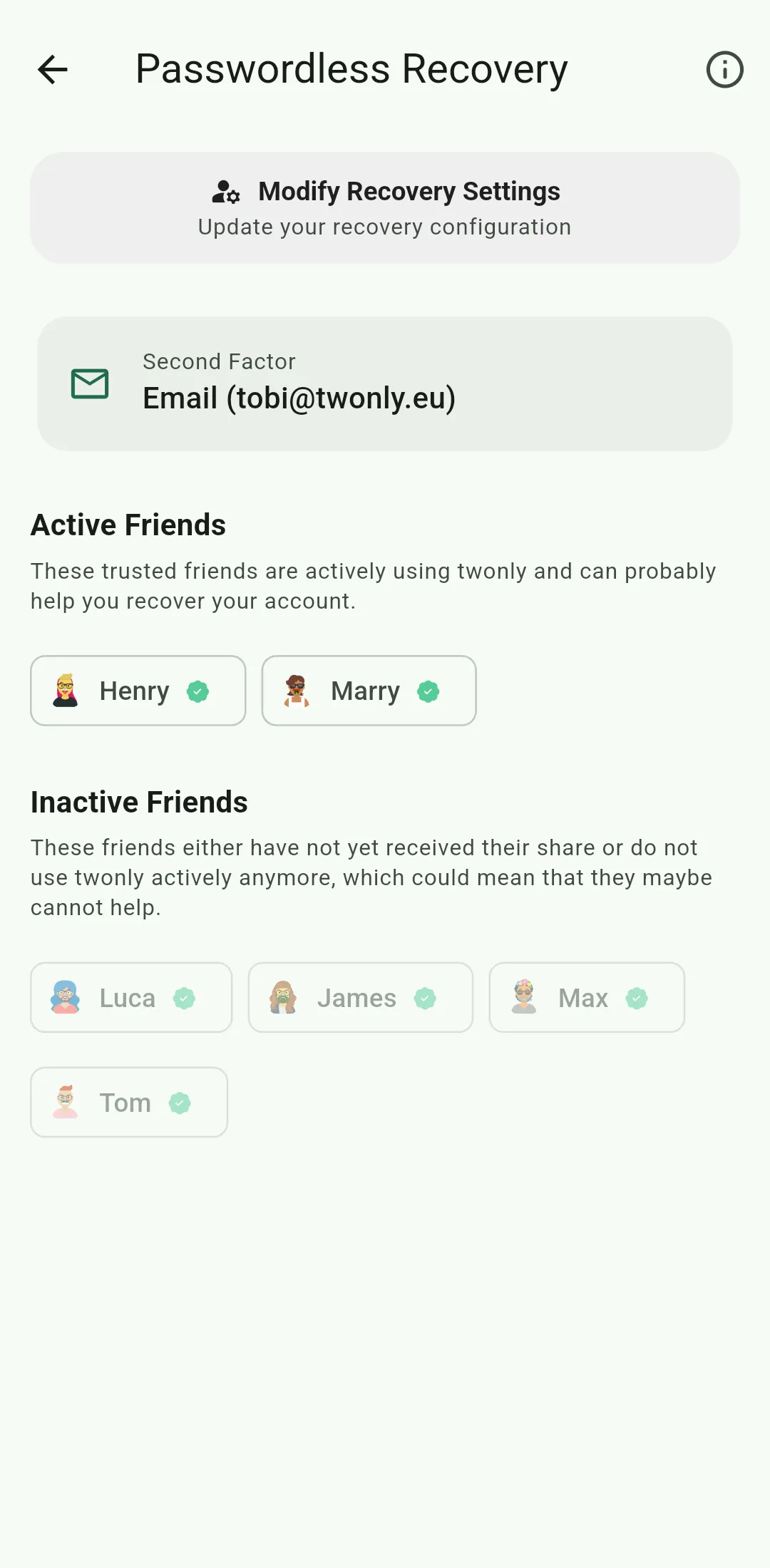
See who can help and who hasn't received their share yet
Choosing a Second Factor
For extra security, you can enable a second factor: either your email address or a PIN. This adds another layer of protection so that even if enough of your friends would collude, they still can't recover your account on their own. If you don't enable a second factor, the required number of trusted friends is automatically increased to at least four to compensate.
Your email address is never stored on the server. It is only sent to the server at the moment of recovery, when it's used to verify your identity and deliver a one-time recovery token.
Recovering Your Account
So you got a new phone, installed twonly, and realize you forgot your backup password. Here is where passwordless recovery comes in.
You start the recovery process and the app generates a QR code and a shareable link. You then have to ask your friends to either scan the QR code or send them your link via Signal or another secure messenger app.
When your friends open the link or scan the code, the app shows them a list of contacts they can help. They select your name and confirm. To prevent phishing attacks, their app shows a confirmation dialog with a 10-second timer and a red warning. It asks them to make sure this request really came from you. This is important because if an attacker tricks them into submitting their share, they get one step closer to stealing your account.
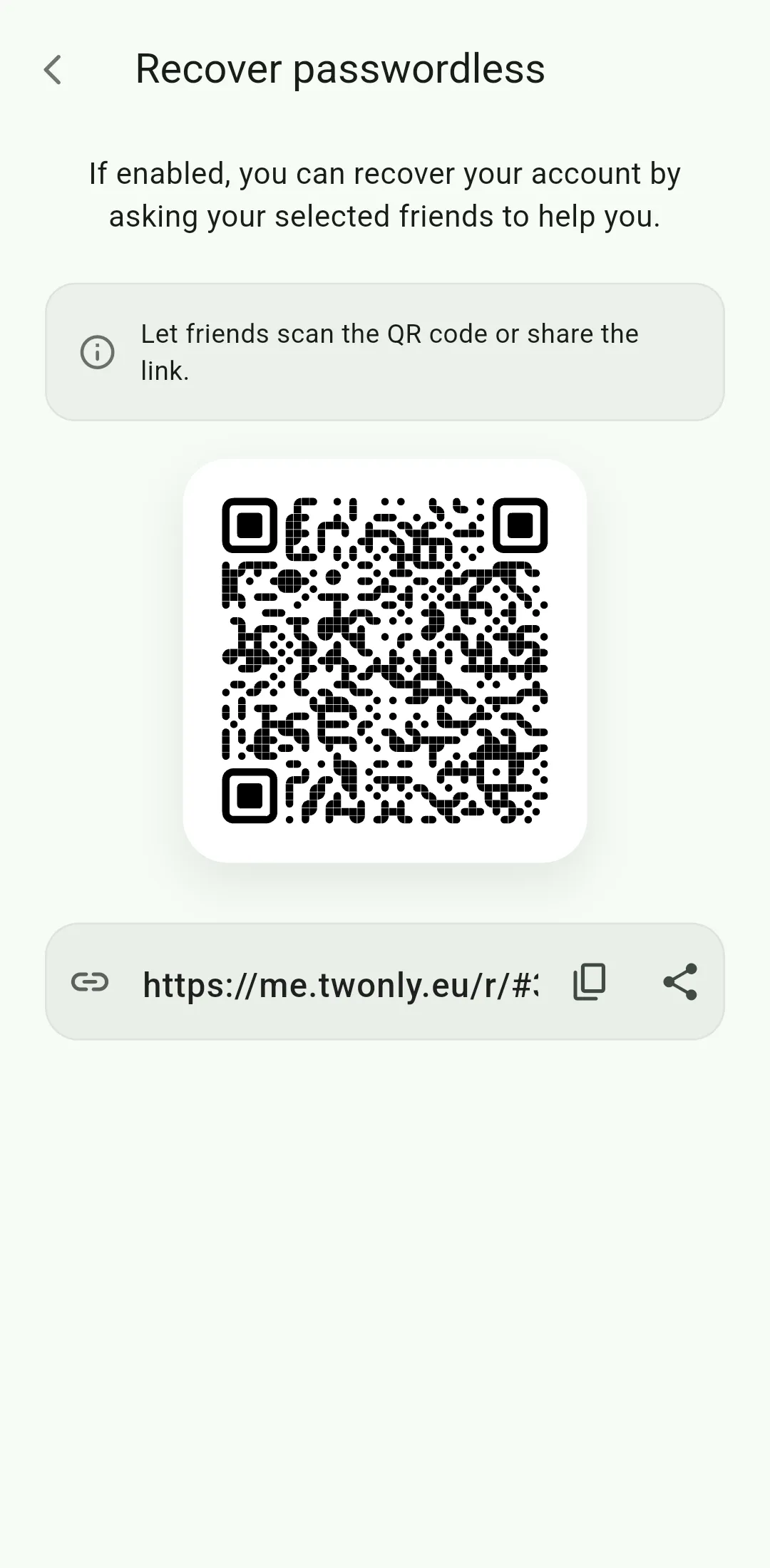
Share the QR code or link with your trusted friends
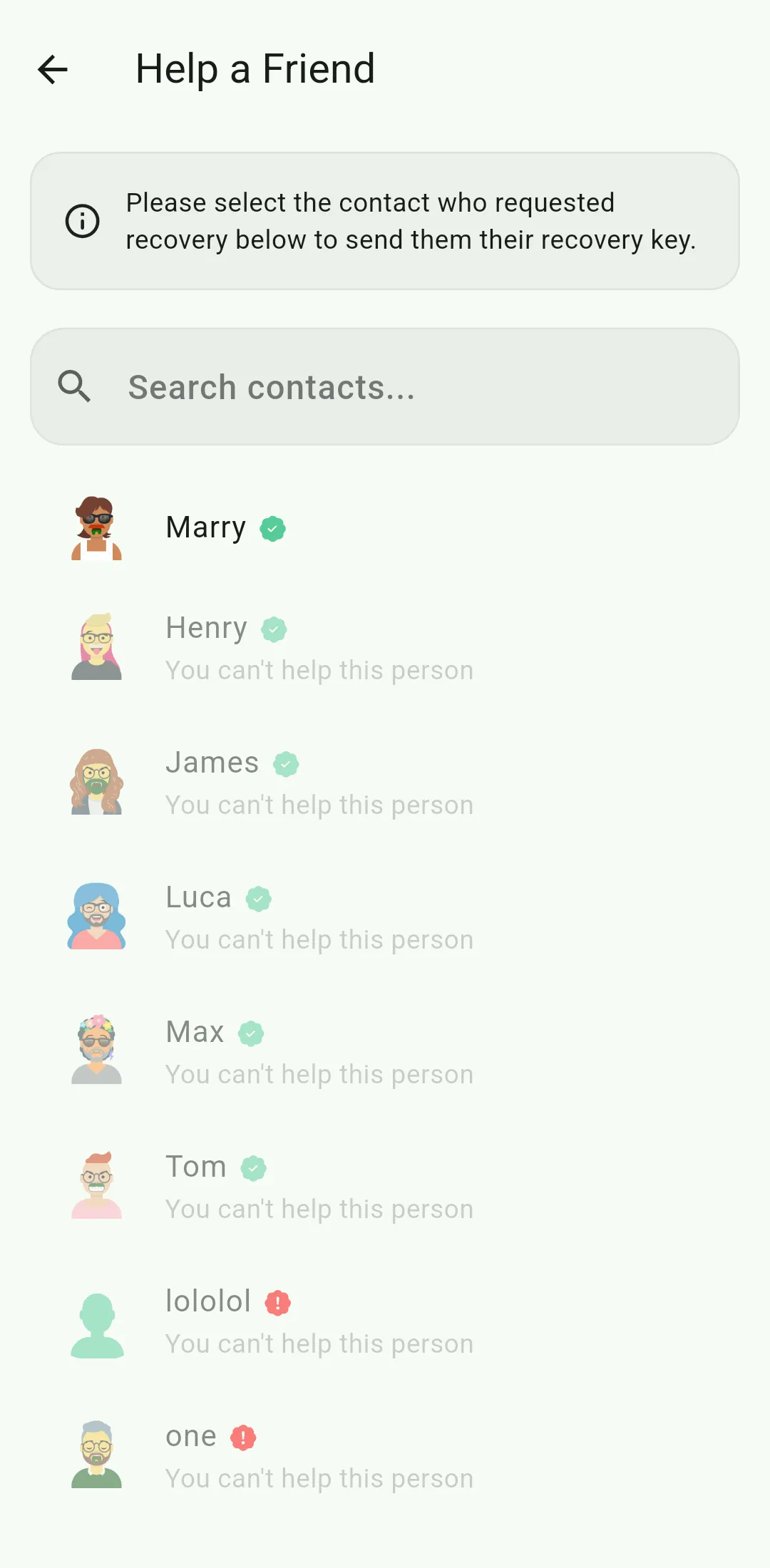
Your friends select you from the list
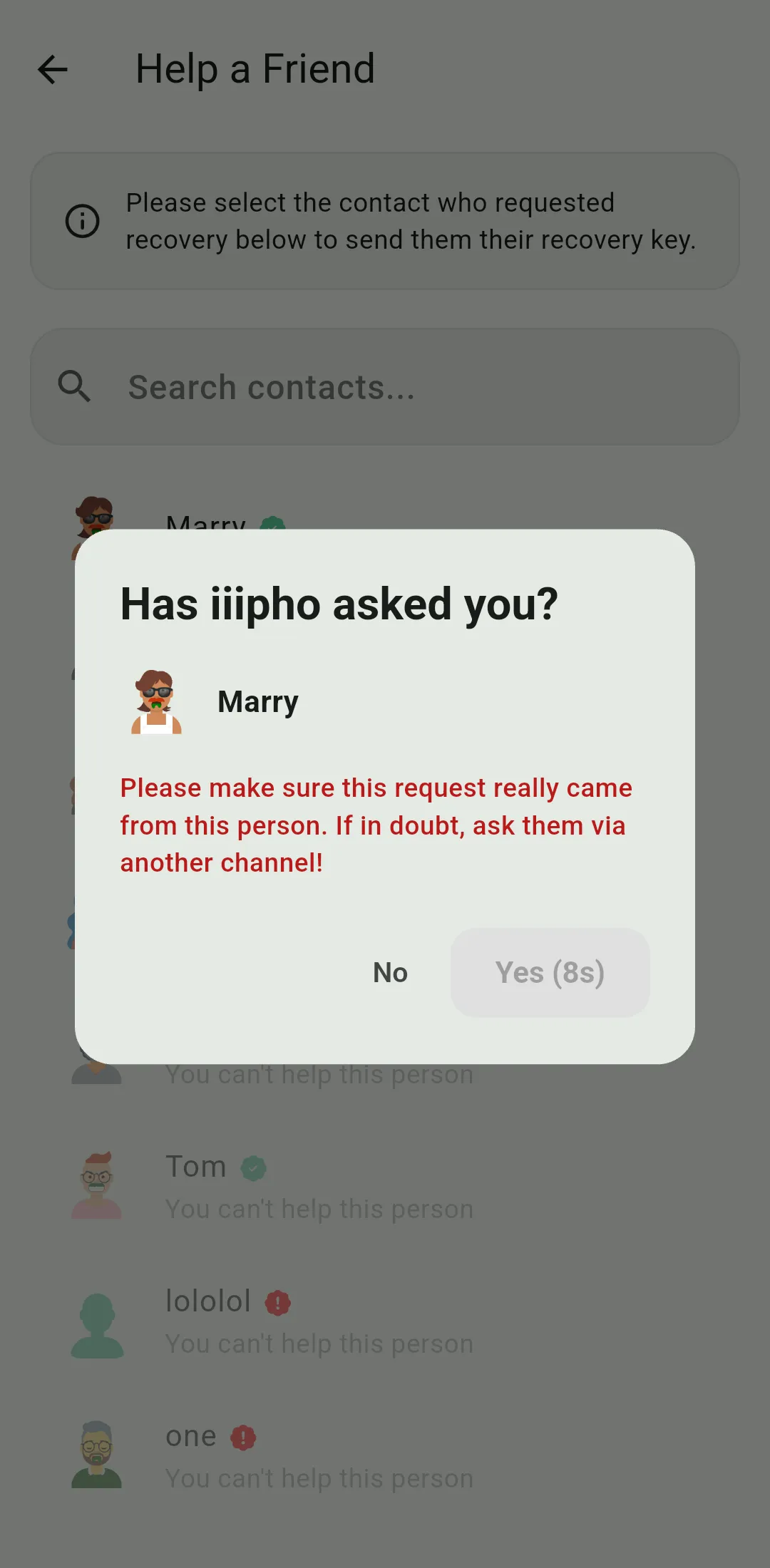
A warning with a 10s timer to prevent phishing
Once enough friends have submitted their shares, the app reconstructs your secret. If you enabled a second factor, you'll also need to verify your email or PIN. With email, the server sends a recovery token to your inbox that you enter in the app. With a PIN, the server verifies it directly.
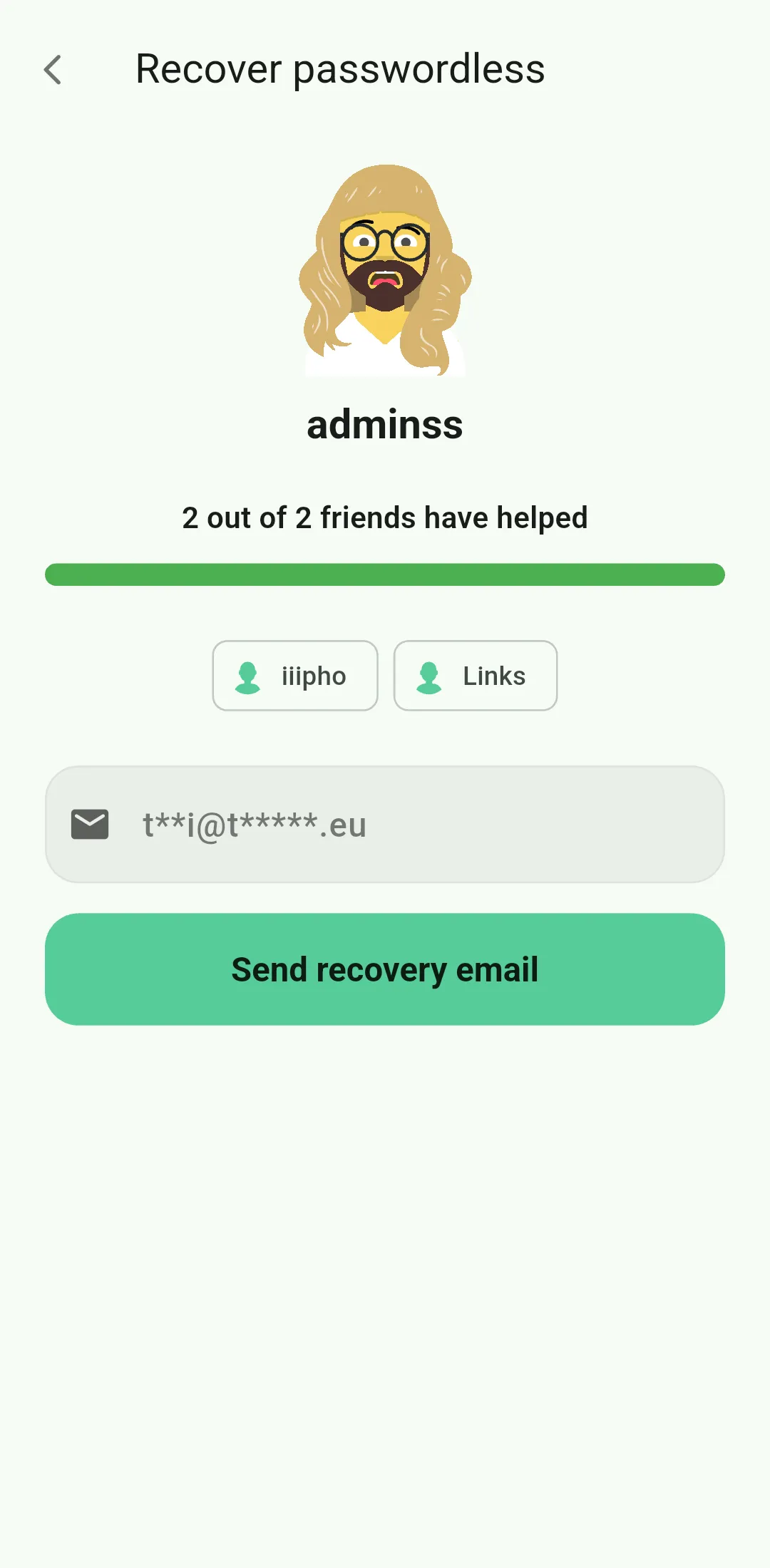
Enter your email to receive the recovery token
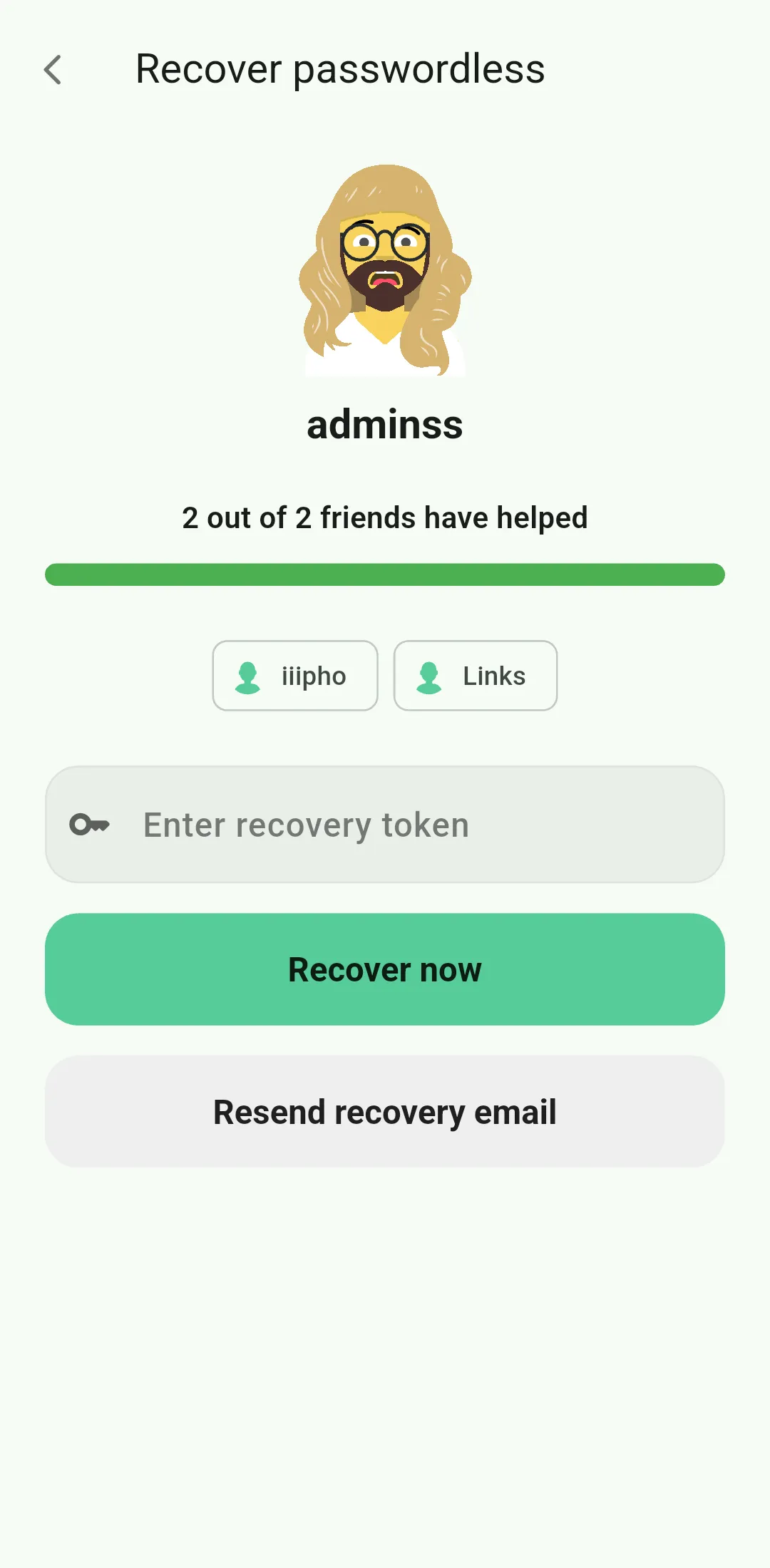
Enter the token you received via email
After that, your identity is restored. Combined with the encrypted cloud backup, you get back your contacts, messages, and eventually your images, without ever having remembered a password.
How It Works Under the Hood
For the technically curious, here is a brief overview of the protocol.
The protocol uses Shamir's Secret Sharing to split your secret key into multiple shares, which are distributed to your trusted friends via end-to-end encrypted messages. No single friend holds enough information to recover your key on their own.
When a second factor is enabled, the shares are additionally encrypted using a key held by the server. The server stores this key in a protected form that it cannot decrypt on its own. It needs your email or PIN to unlock it. The server never learns your email or PIN during setup, only during recovery.
During recovery, the submitted shares are encrypted with a symmetric key which is embedded in the QR code or link you share with your friends during the recovery. The server then only forwards the encrypted data but can never read it.
For the full cryptographic protocol check out my technical blog post.