Bring Your Snapchat Memories to twonly
Why an Importer?
Many of you have used Snapchat for years and saved thousands of snaps to Memories. These photos and videos are often the most valuable part of an account, and nobody wants to leave them behind when switching to a new app.
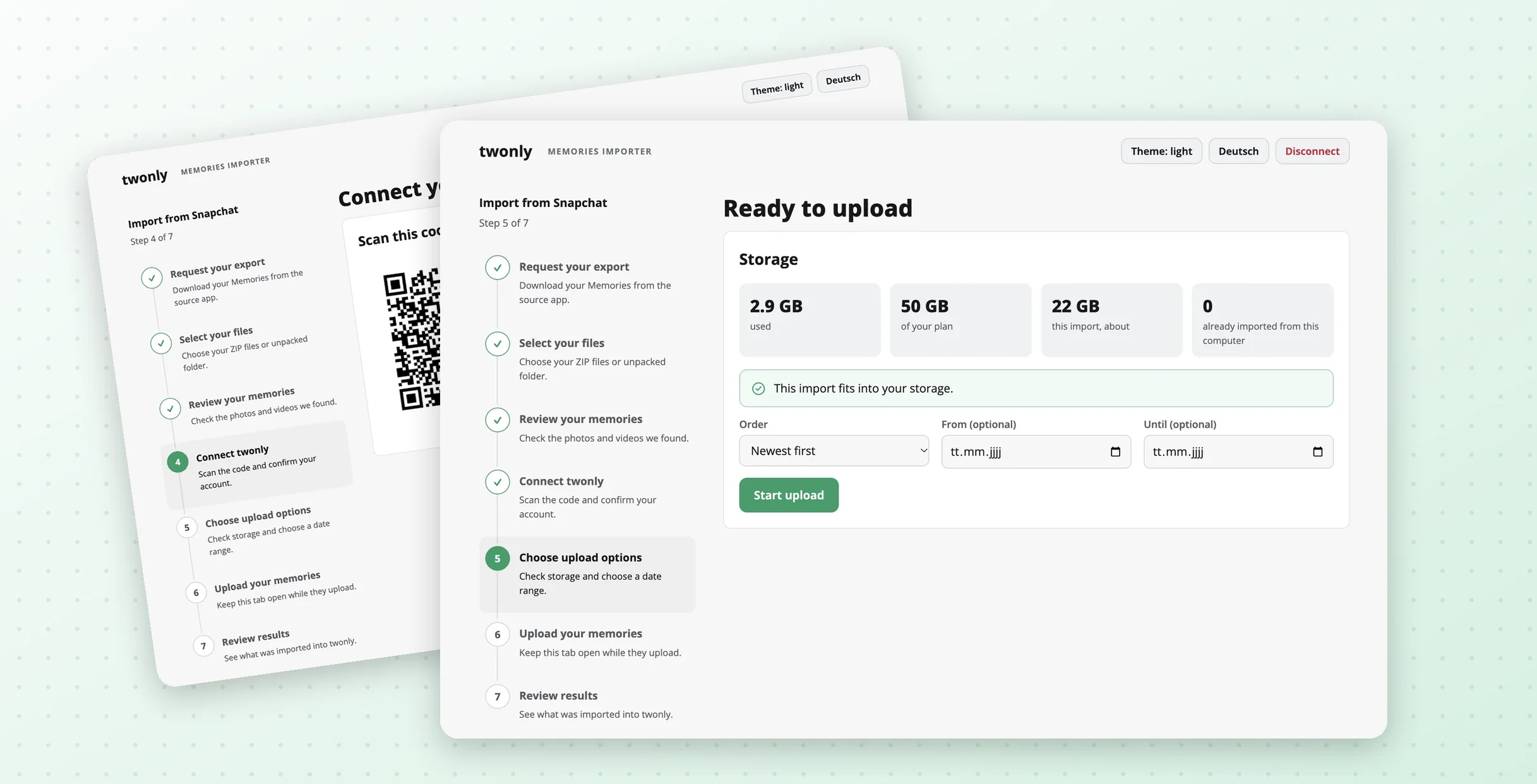
With the Memories Backup, twonly can already store your memories end-to-end encrypted in the cloud. The new importer now also lets you bring your existing Snapchat Memories into it, with their original dates and locations. They show up in your twonly Memories just like the pictures you took with twonly.
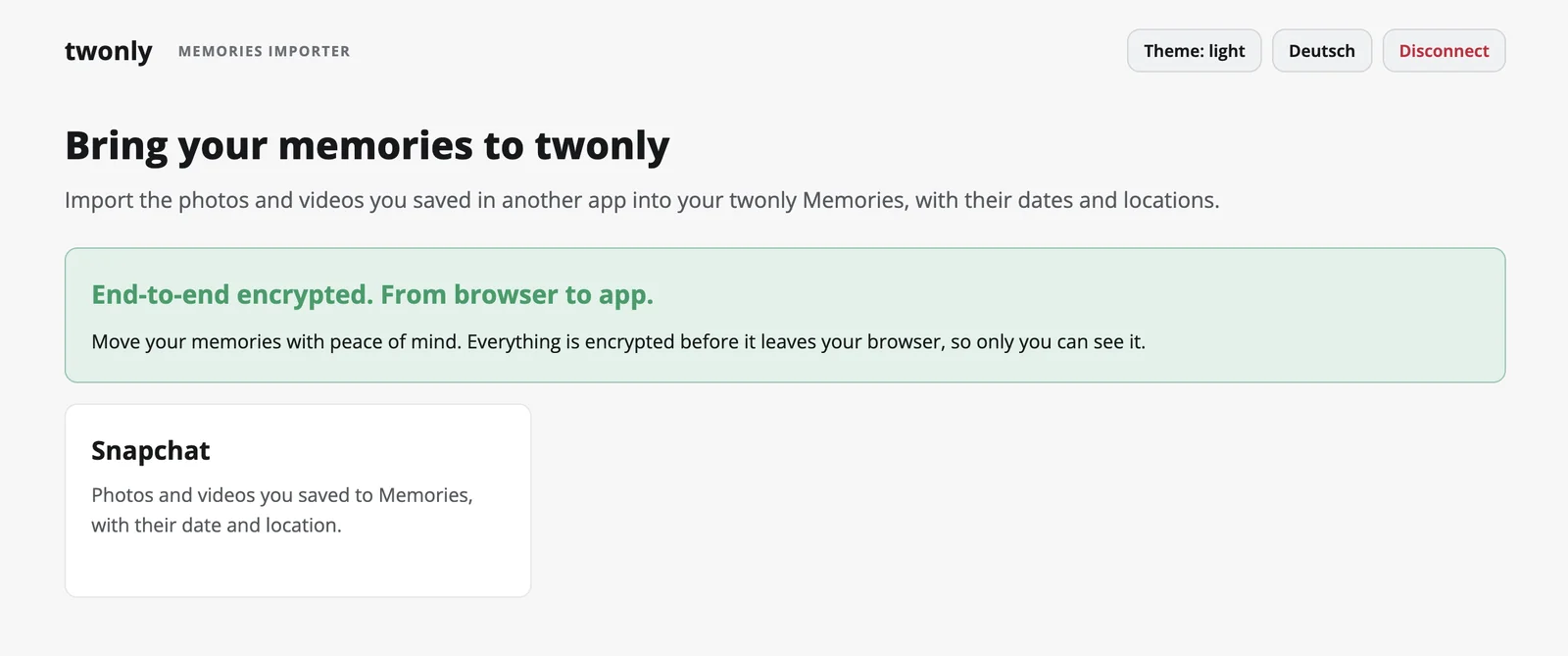
The memories importer at import.twonly.eu
What You Need
- A twonly plan with Memories storage. The importer shows you before the upload whether your memories fit into your storage.
- Your Snapchat export. Snapchat lets you download all your Memories. The importer explains how to request the export.
- A computer with Chrome, Brave, another Chromium-based browser or Firefox. Safari is currently not supported.
The import runs on your computer and not on your phone. A Snapchat export can easily be several gigabytes, so this way you don't have to download it onto your phone first.
Importing Your Memories
Requesting Your Export
First, you request your Memories from Snapchat. In Snapchat, open your profile, go to Settings > Privacy Controls > My Data and select Export your Memories. Make sure to also include the files themselves and set the date range to All time. Snapchat sends you an email once your export is ready, which can take up to a day. Download all ZIP files into one folder on your computer.
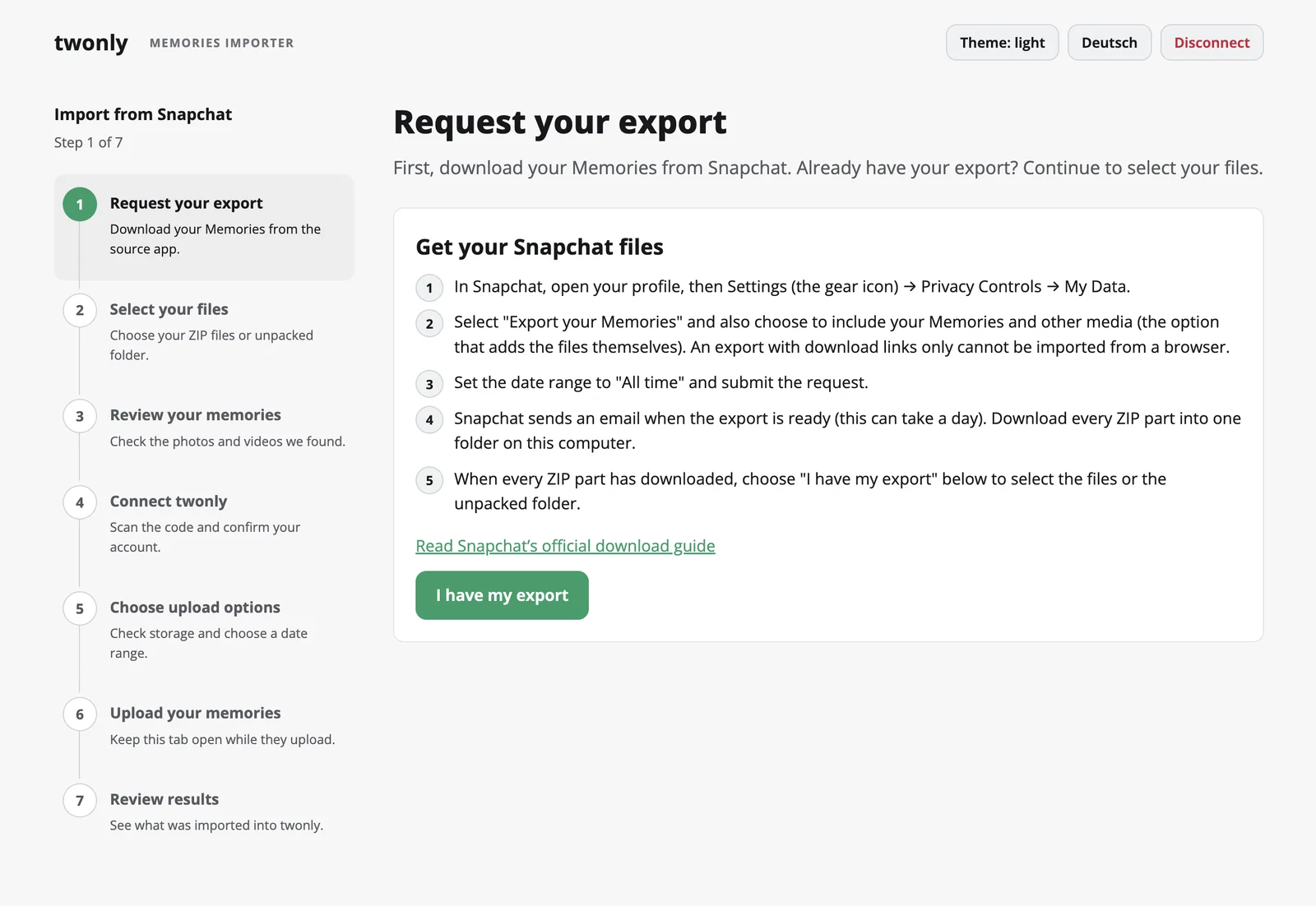
The importer guides you through requesting your export
Selecting Your Files
Open import.twonly.eu and select your ZIP files or the unpacked folder. The importer reads them directly on your computer and shows you what it found: how many photos and videos, from when, and how many of them have a location. Nothing is uploaded yet.
Connecting Your Account
Next, you connect the importer to your twonly account. The page shows a QR code that you scan with the twonly camera. The app then explains what the importer is allowed to do, and you tap Connect. Back on your computer, the page shows the username that scanned the code. Only continue if it is yours.
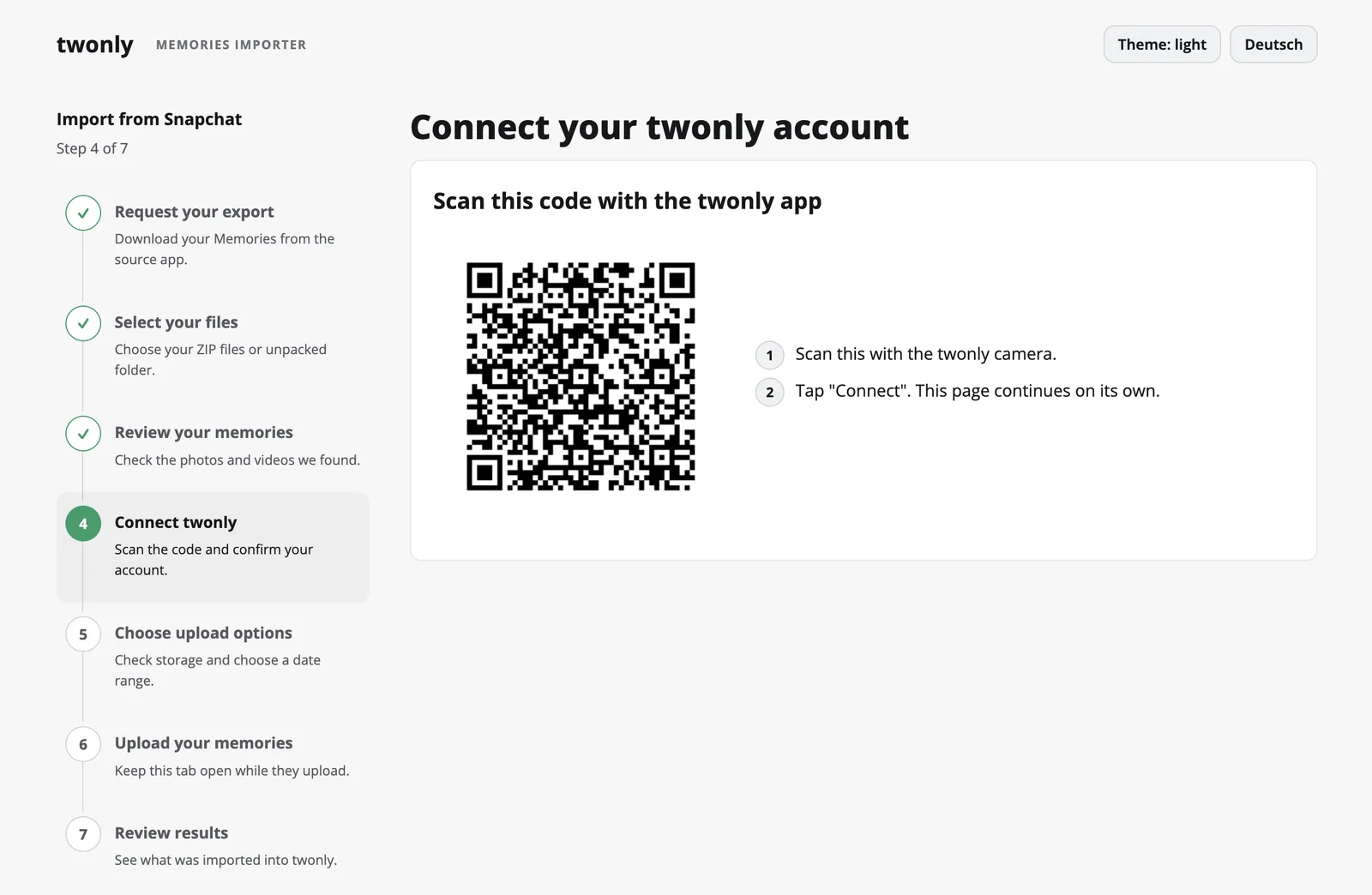
Scan the code with the twonly camera to connect your account
Uploading
Before the upload starts, you see how much storage the import needs and whether it fits into your plan. You can choose to upload your newest or your oldest memories first, or only import a certain date range.
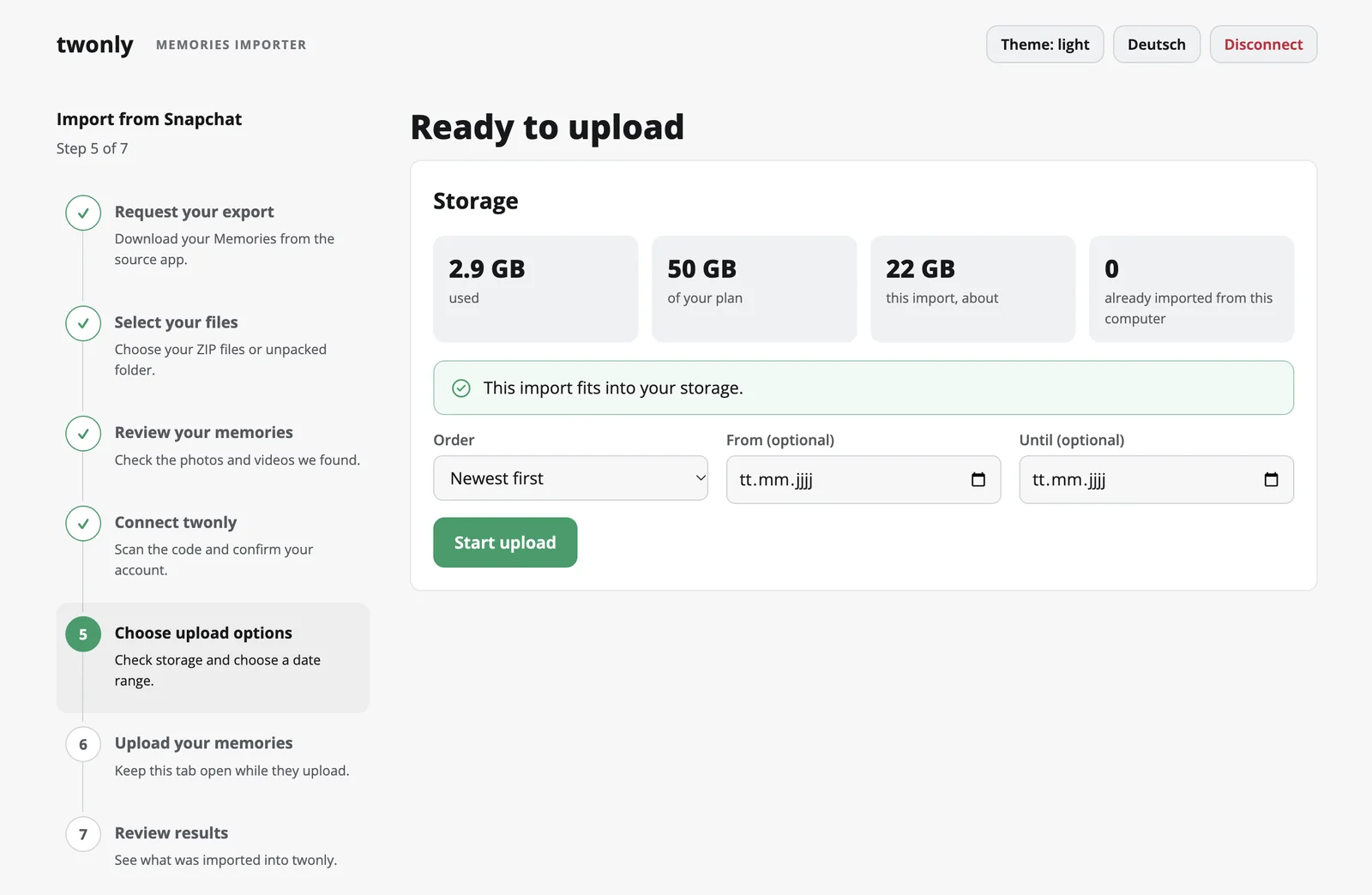
Check your storage and choose what to upload
During the upload, the page shows how many memories are done and how long it will take. Your memories appear in the twonly app while they are uploading. Keep the tab open until the upload has finished. You can pause the upload at any time, and if it gets interrupted, simply select the same export again: memories that are already uploaded are skipped.
Captions and stickers are drawn onto your photos, just as Snapchat shows them. Videos are imported without captions and stickers.
Your Privacy
Your memories are as private after the import as they are in the twonly app:
- Encrypted in your browser. Your export is read and encrypted on your computer. Only encrypted data is uploaded, so neither we nor anyone else can see your photos, videos or where they were taken.
- The importer can only add memories. The key your phone hands to the browser only allows adding new memories. The importer can never see, change or delete the memories you already have.
- You stay in control. The connection ends when you click Disconnect, after 2 hours without uploads, or at the latest after 2 days. In the app under Settings > Memories > Import from other apps, you can remove the importer at any time and decide whether to keep or delete everything it uploaded.
How It Works Under the Hood
For the technically curious, here is a brief overview. For the full protocol, check out my technical blog post.
Every memory in twonly is encrypted with its own random key, which is in turn protected by a key that only exists on your phone. When you scan the QR code, your phone does not hand this key to the browser. Instead, it creates a new key that is only valid for this one import, encrypts it and sends it to your browser through our server. The QR code contains a public key of your browser, so only your browser can decrypt it, and not the server.
Your browser can use this key to encrypt new memories, but not to decrypt any existing ones. Your phone can then decrypt the imported memories just like its own.
The importer is open source, and you can find its source code on GitHub.