Tour through twonly

Features you might have missed

twonly does more than send photos. Play games in your chats, turn your photos into stickers, follow your friends’ trips on a map and much more. Here are the features that are easy to overlook, and where to find them.

Fun with friends

Games

Challenge your friends to 8-Ball Pool, Chess, Connect Four, Mills or Sea Battle, right in your chat. No extra app, no account, no ads: start a round whenever you have a minute and pick it up again later.

Where to find it: Open a chat with a friend, tap + and then App.
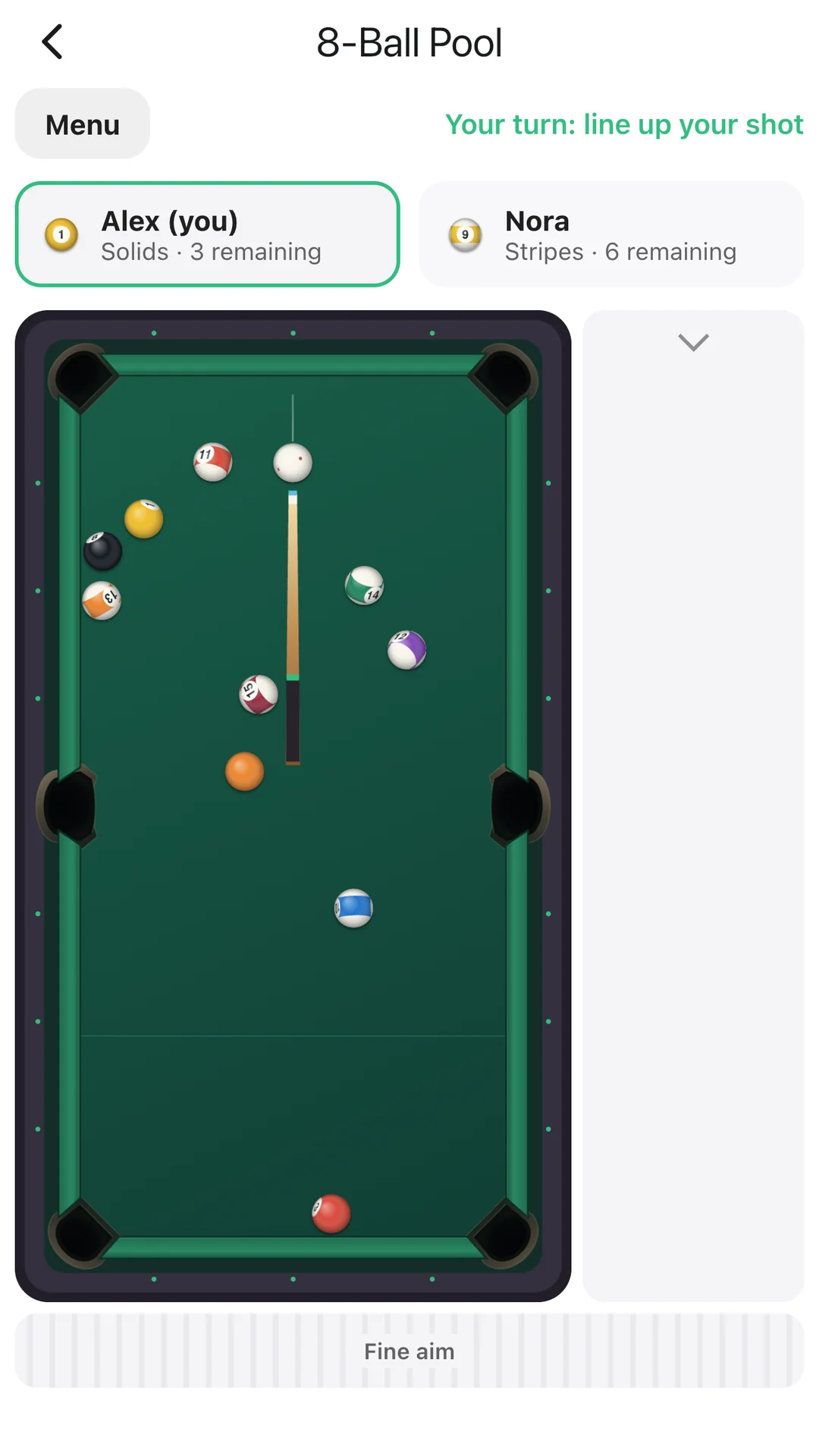
A game of 8-Ball Pool inside a twonly chat. A dotted line shows where the white ball will go.
8-Ball Pool in a chat
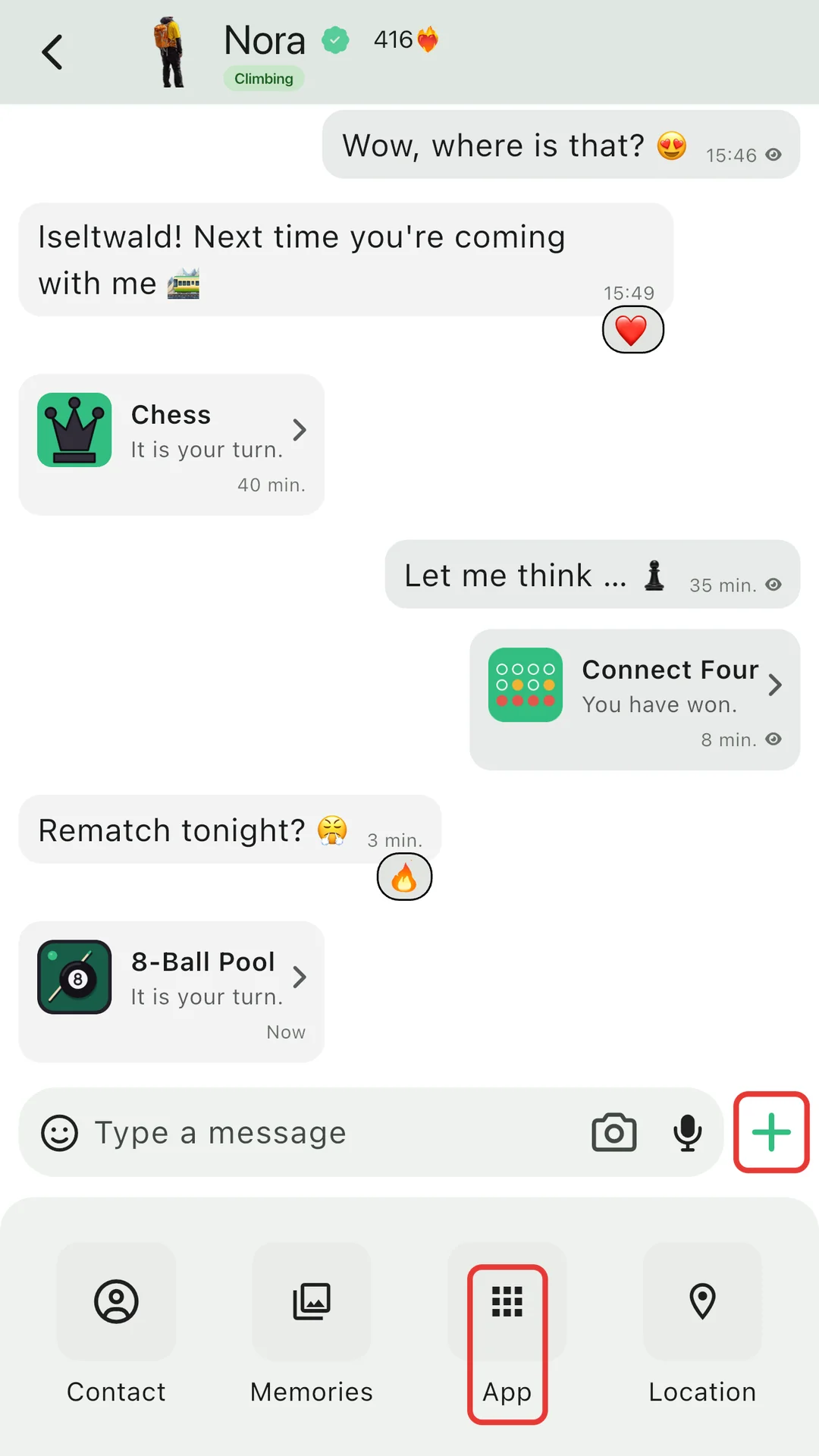
A twonly chat with the plus menu open. It offers Contact, Memories, App and Location. The plus button and App are marked with red frames.
Tap + and then App
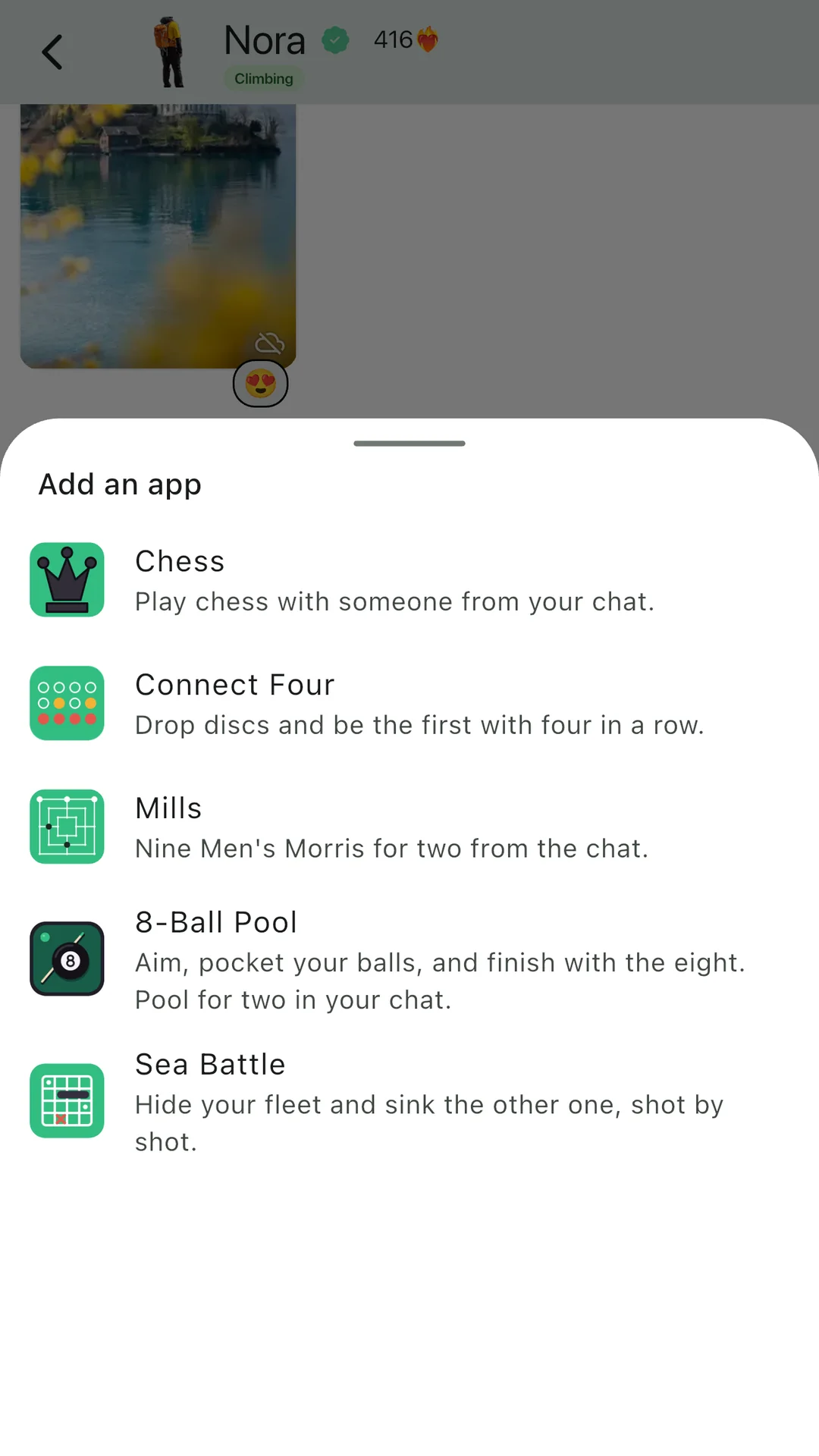
The list of games in a twonly chat, each with a short description: Chess, Connect Four, Mills, 8-Ball Pool and Sea Battle.
Pick a game

Your own stickers

Turn any photo into a sticker: cut out a friend, your pet or your latest inside joke and send it in any chat. You can create stickers in three places:

  • In a chat: open the emoji picker and tap the add button.
  • In the image editor: tap the sticker button and select the part you want.
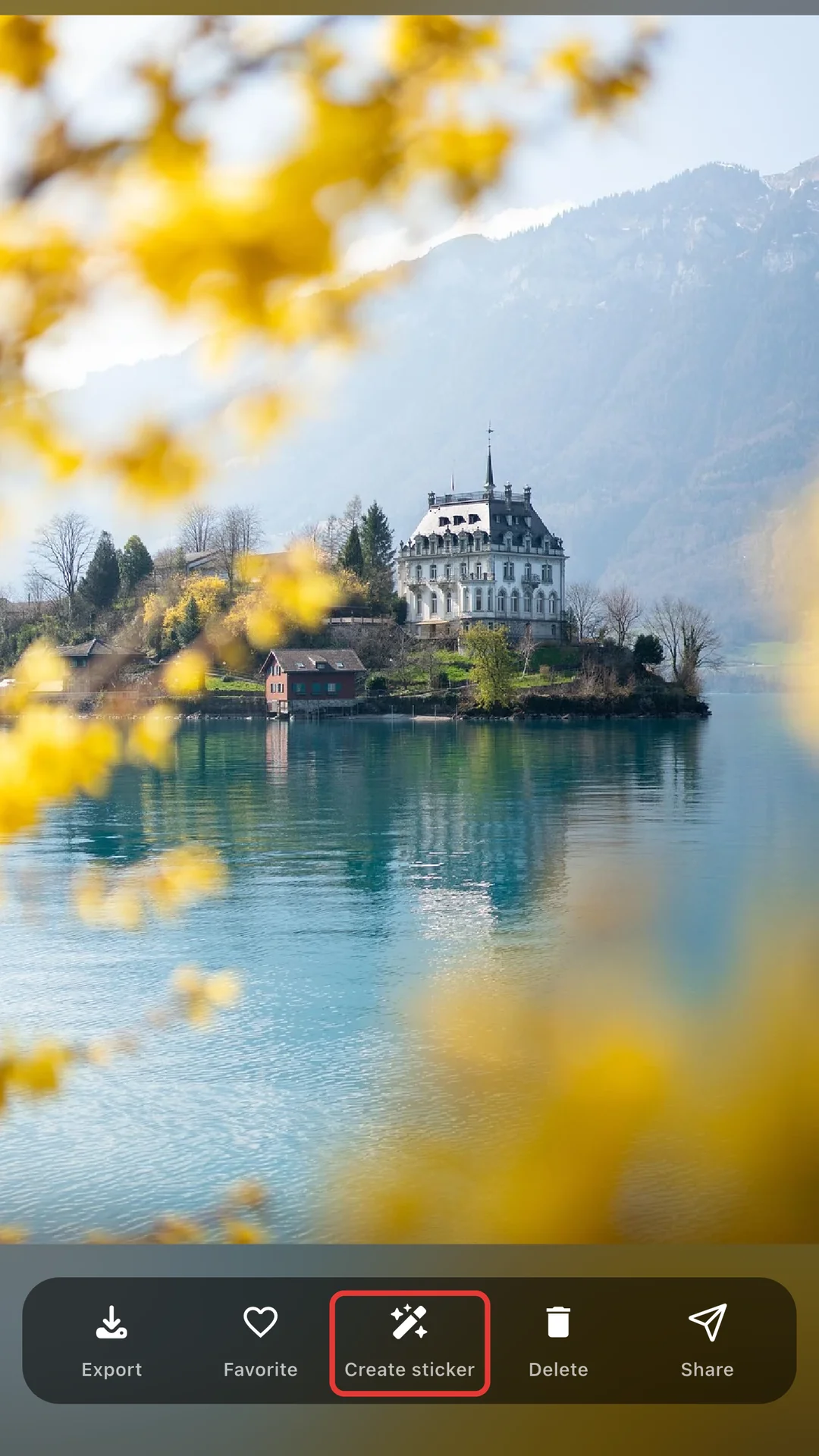
  • In your Memories: open a photo and tap Create sticker.
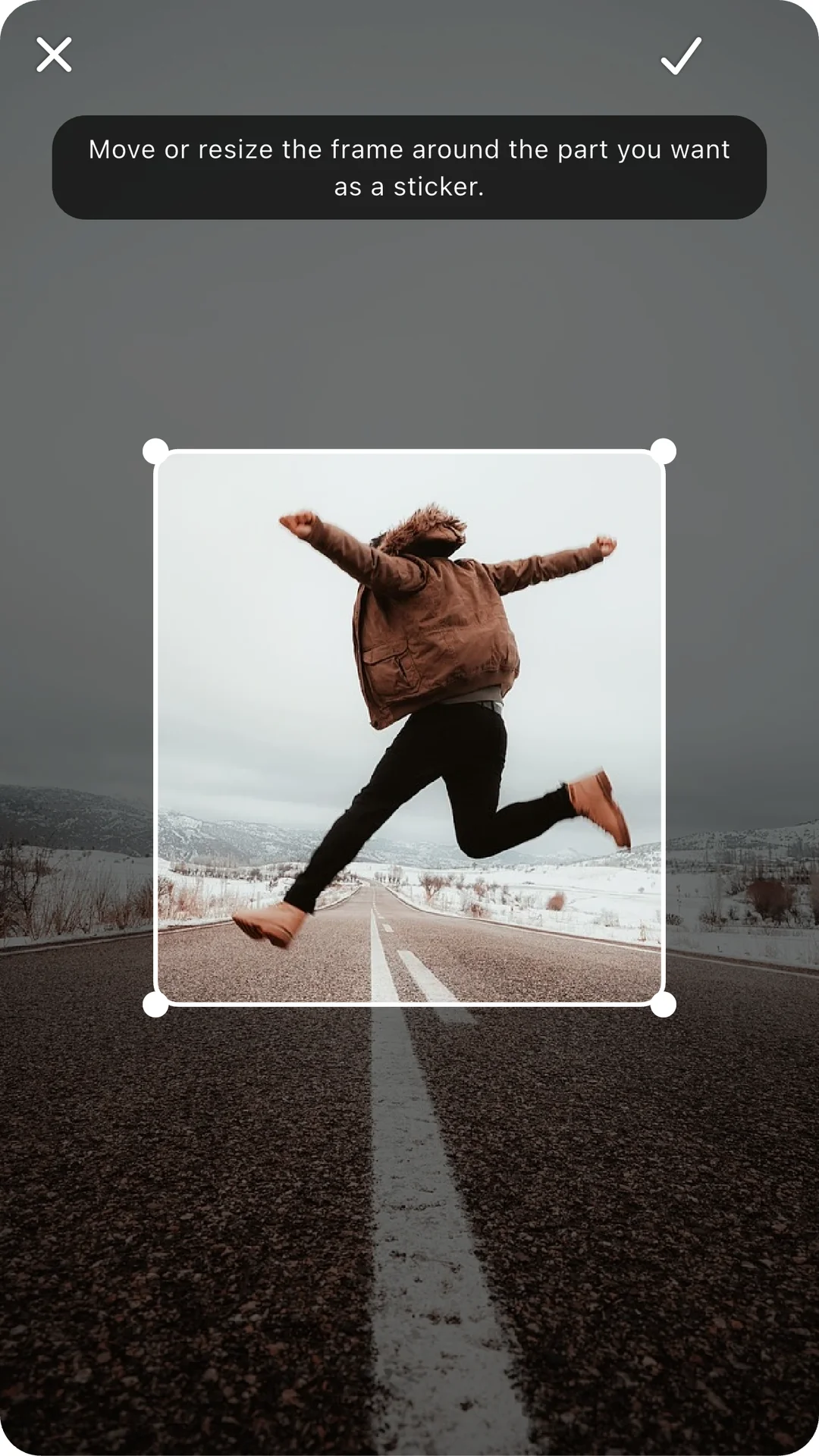
The twonly photo editor. A frame around a jumping person marks the part that becomes the sticker.
Select the part for your sticker
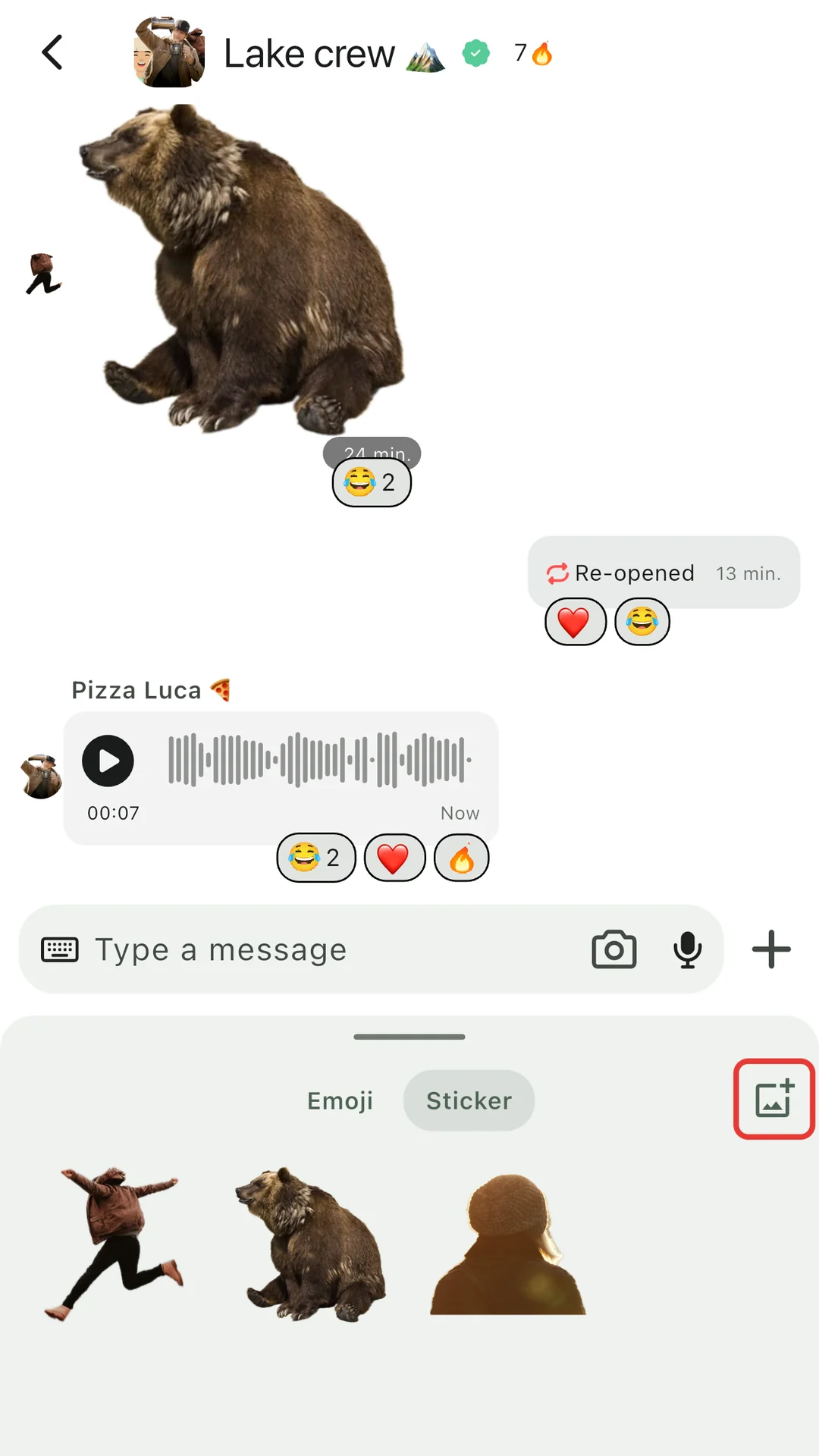
A twonly chat with the sticker picker open: a jumping person, a bear and a person in a knit cap. The add button at the top right is marked with a red frame.
Or add one in the emoji picker
A saved photo in twonly Memories. The option Create sticker in the bottom bar is marked with a red frame.
Or create one from your Memories

Your own quick reactions

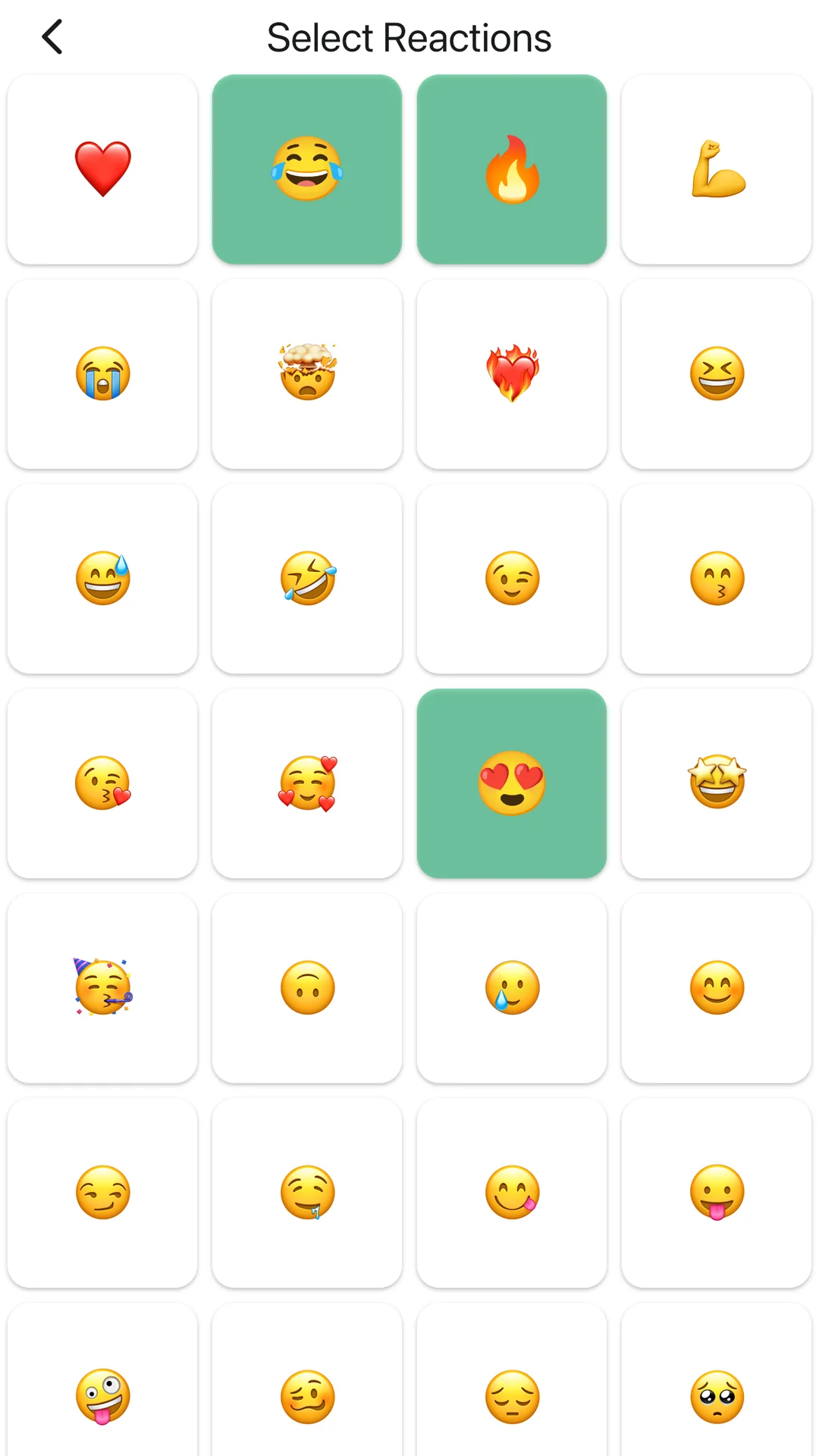
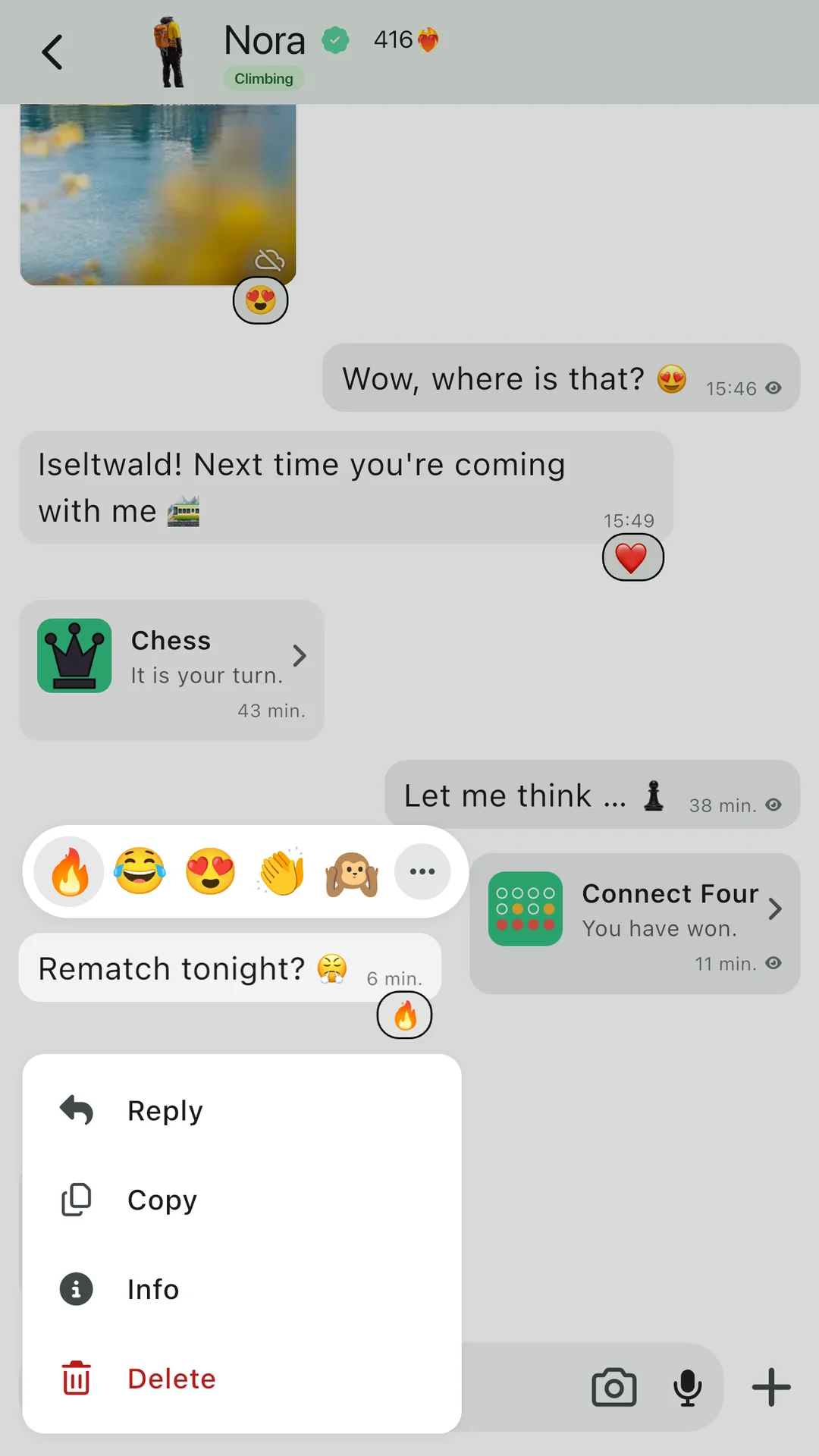
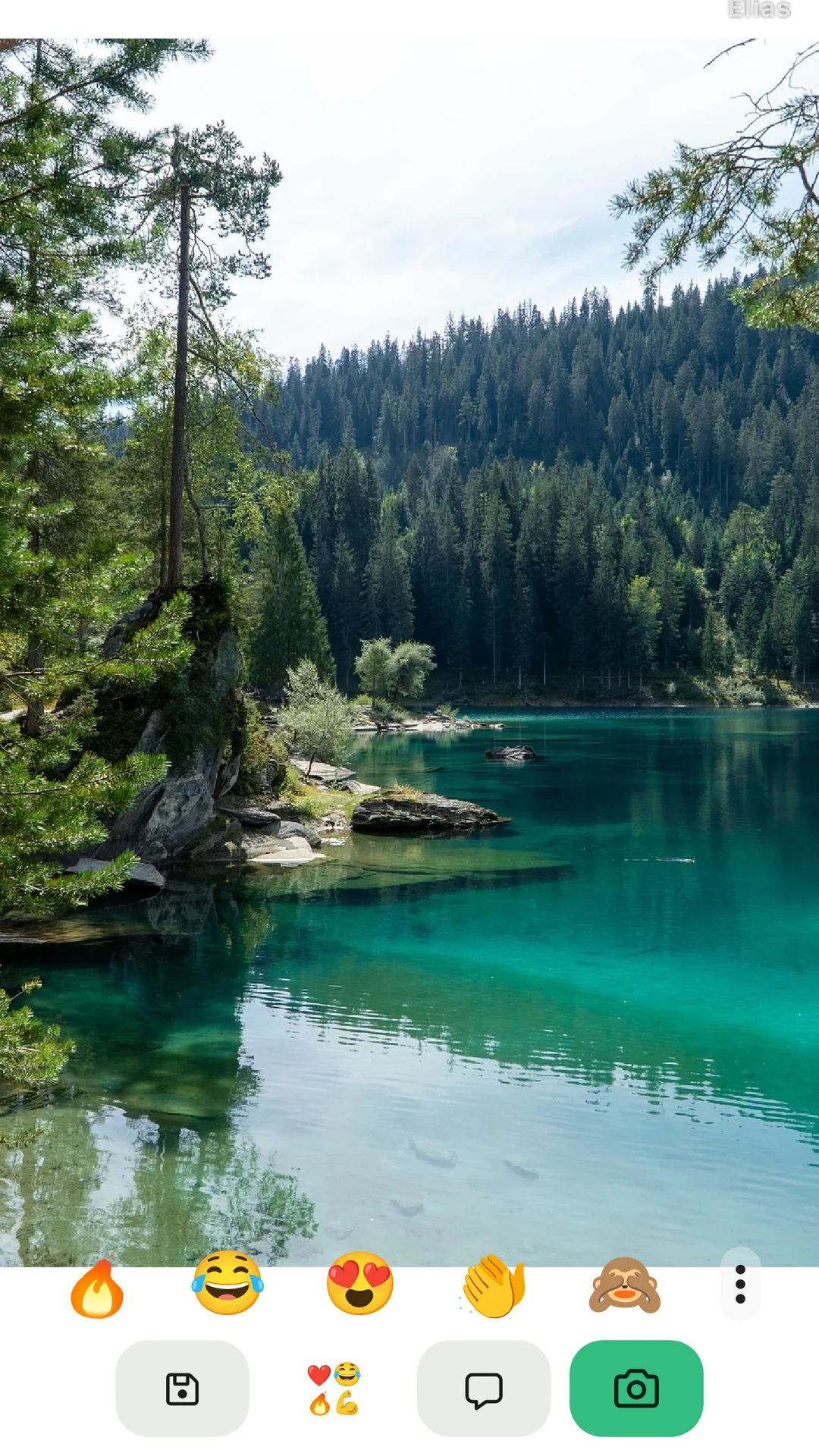
React in one tap with the emojis you actually use. Choose up to 12 favourites. They appear when you long-press a message and while you look at a photo or video.

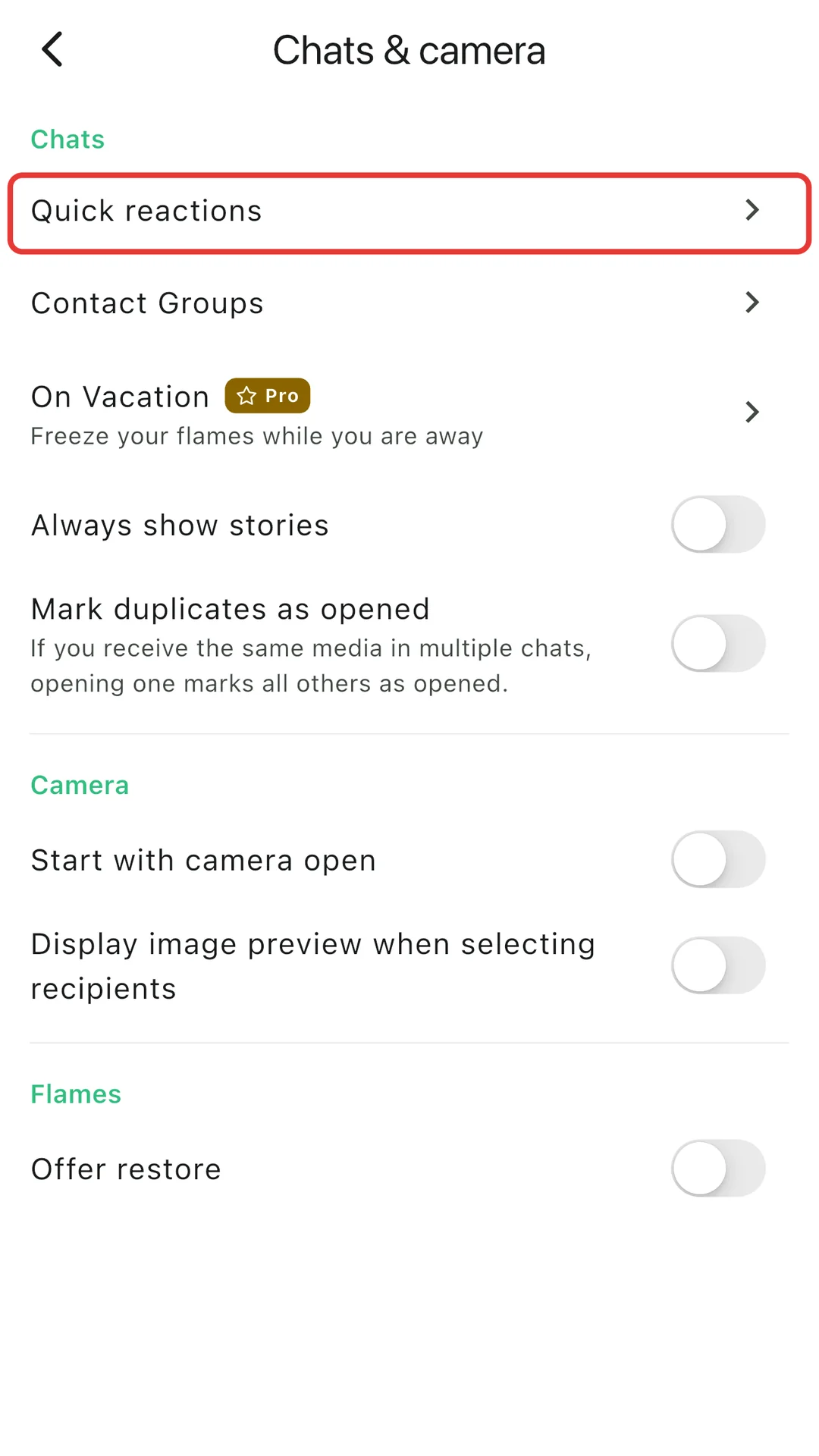
Where to find it: Settings > Chats & camera > Quick reactions.

The twonly Quick reactions setting with a grid of emojis, some of them selected.
Pick your emojis
A twonly chat where a message is long-pressed. Above it is a row of emoji reactions.
Long-press a message
A photo opened in twonly with a row of emoji reactions at the bottom.
React to a photo
The twonly chat settings. The entry Quick reactions is marked with a red frame.
In the chat settings

Your friends

Photo avatar

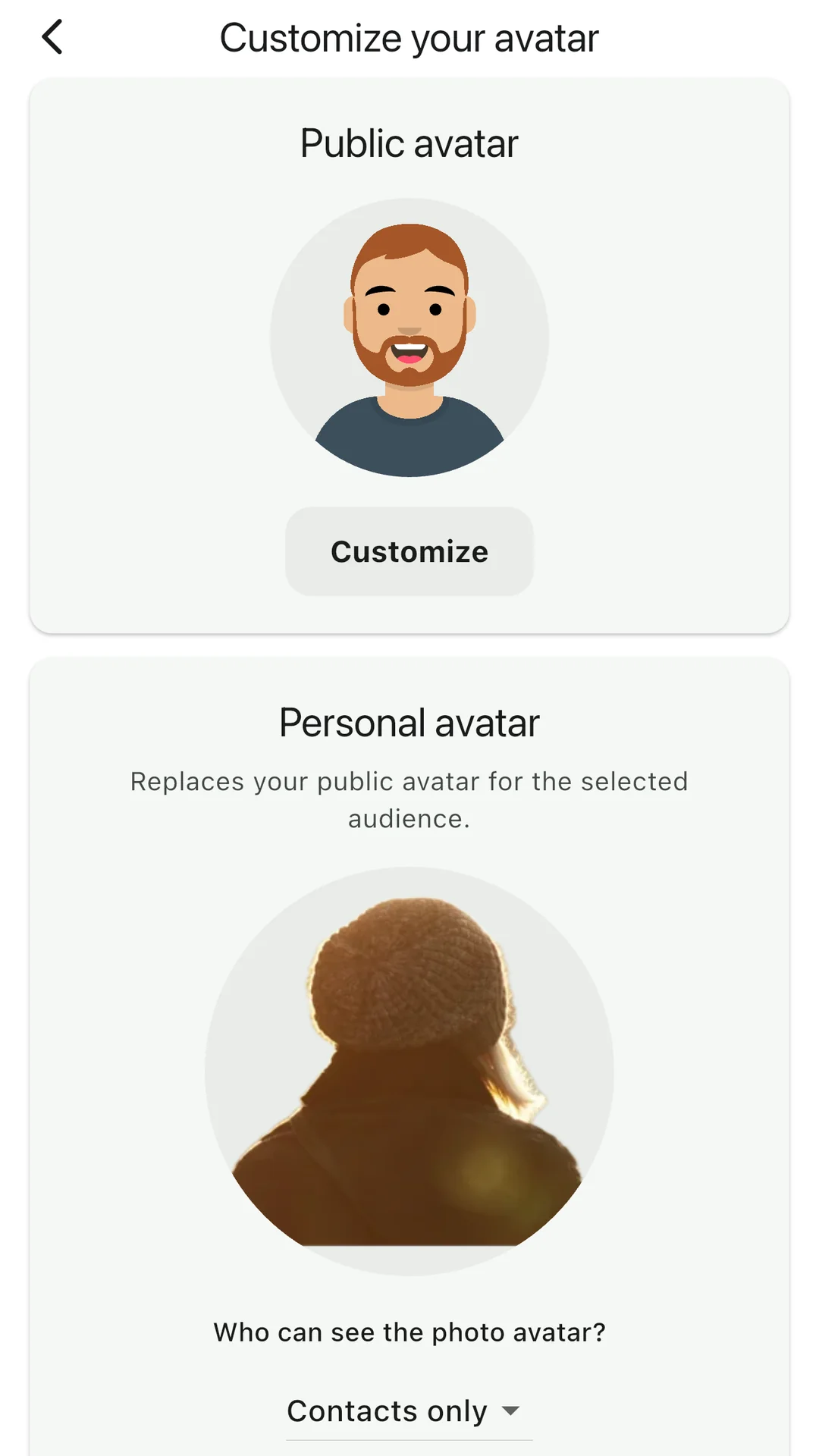
Show your real face only to the people you know. Next to your drawn public avatar, you can add a personal photo avatar and decide who sees it: only your contacts, or everyone.

Where to find it: Settings > Profile > Customize your avatar > Personal avatar.

twonly avatar settings with a personal photo avatar and the question who can see the photo avatar, set to Contacts only.
Choose who sees your photo
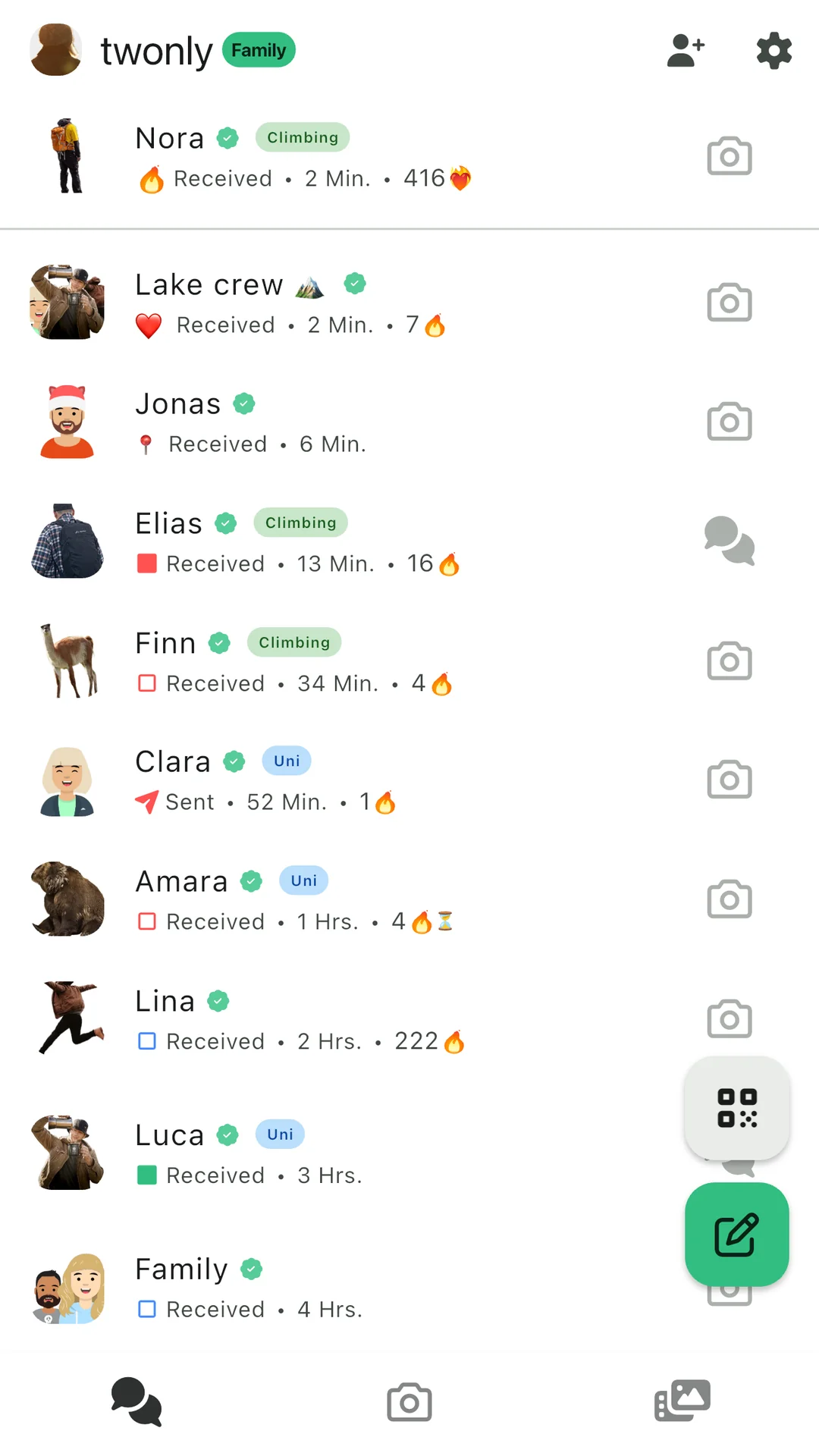
The twonly chat list with a mix of drawn avatars and photo avatars.
Drawn and photo avatars in the chat list

Nicknames

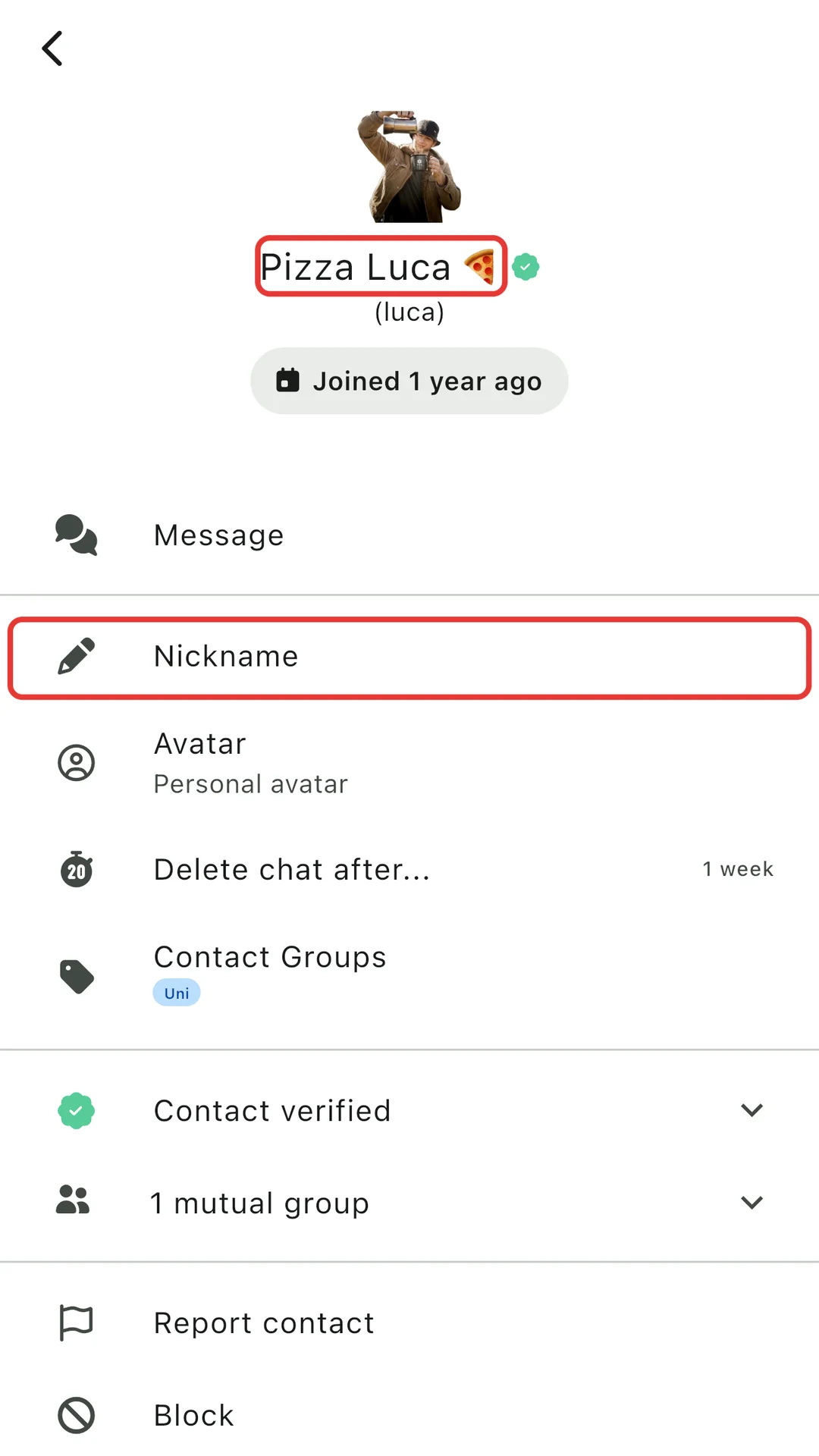
Give any contact a name you recognise at a glance. Nicknames are only visible to you.

Where to find it: Open the contact and tap Nickname.

A twonly contact profile with a photo avatar. The nickname Pizza Luca with a pizza emoji and the option Nickname are marked with red frames.
Only you see the nickname

Contact groups

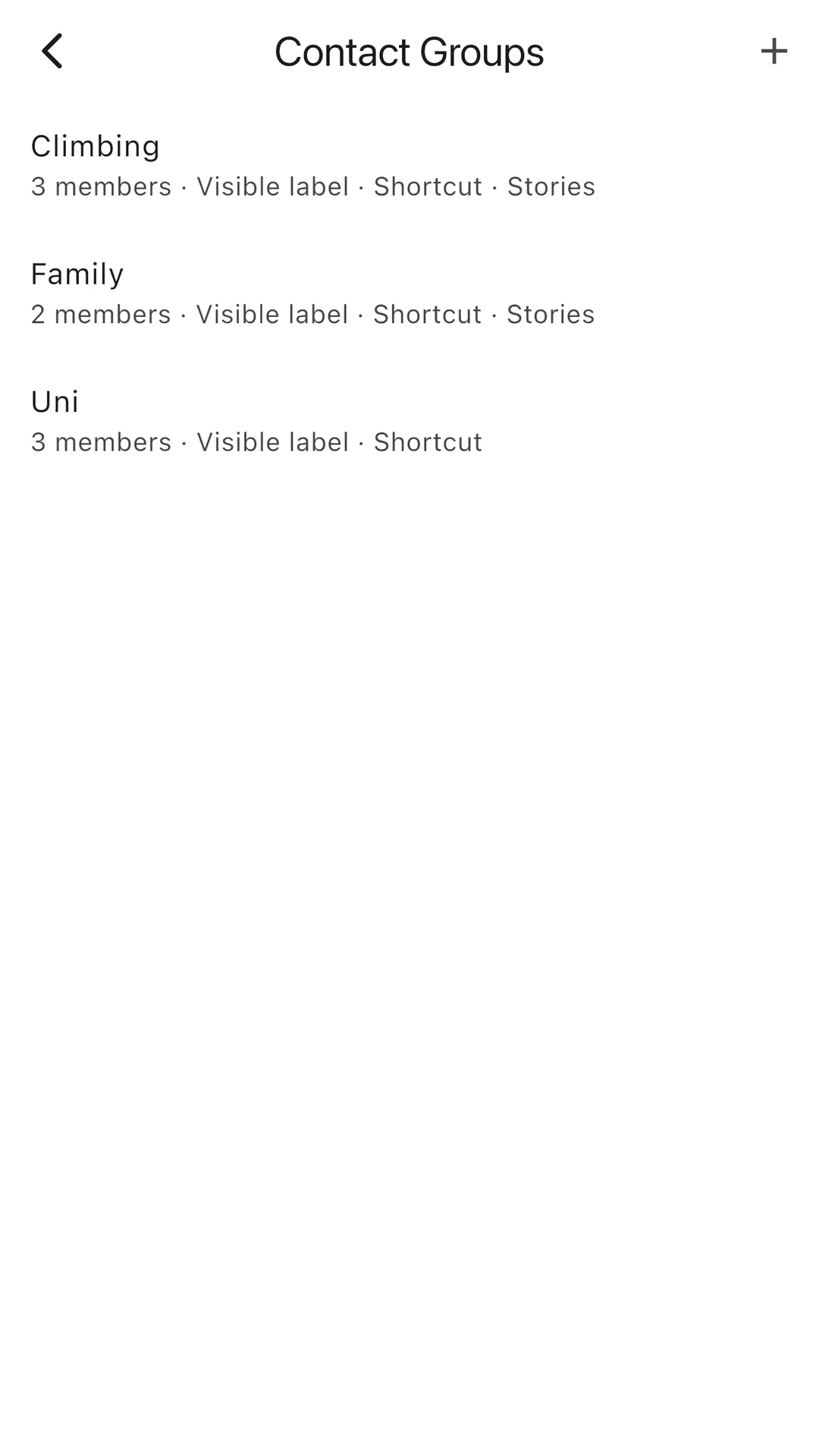
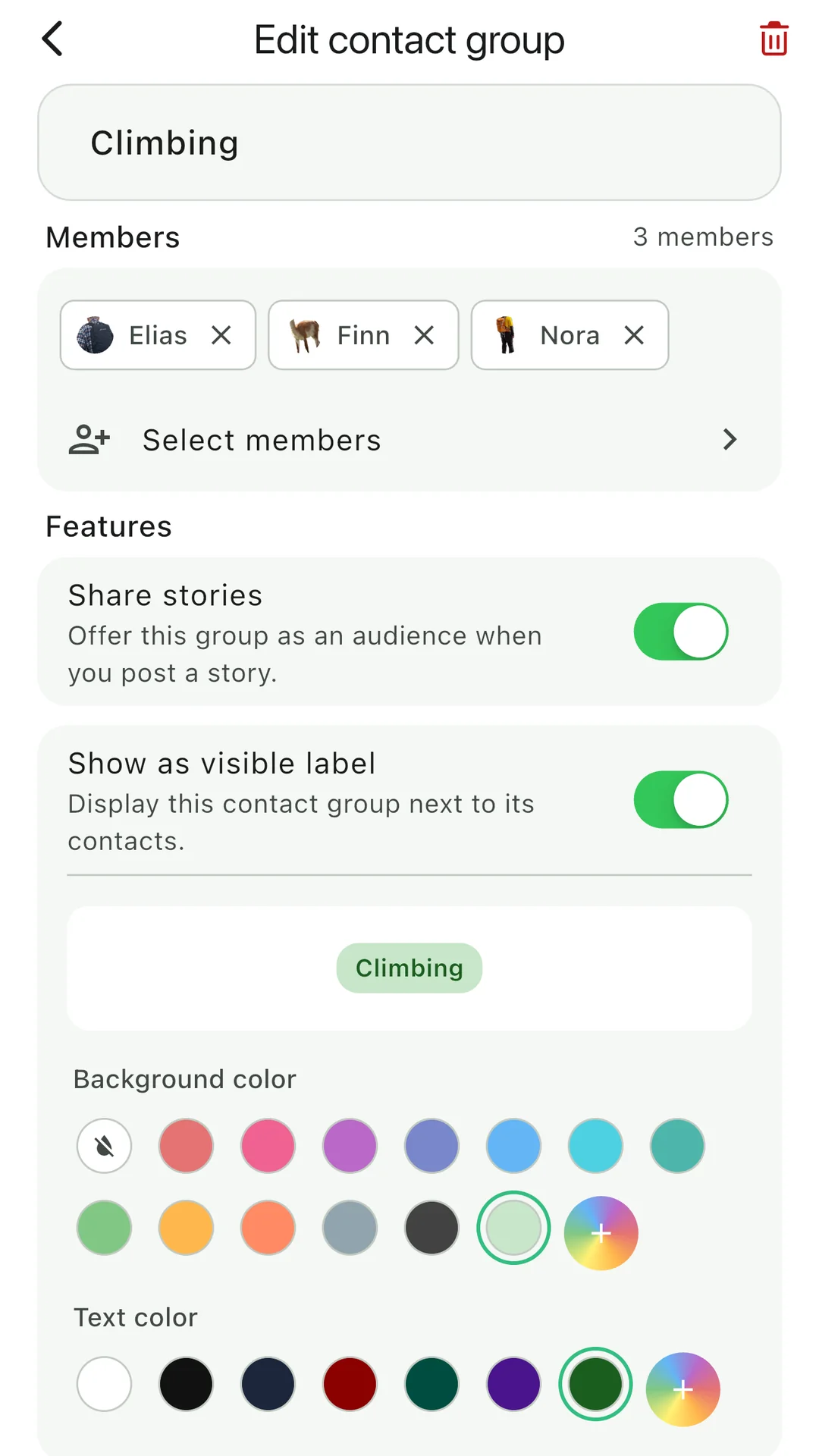
Sort your contacts into groups like Family, Climbing or Uni, and use them all over the app: as labels, as shortcuts when sharing, as the audience of a story and as a widget on your home screen. More in the help: Contact groups.

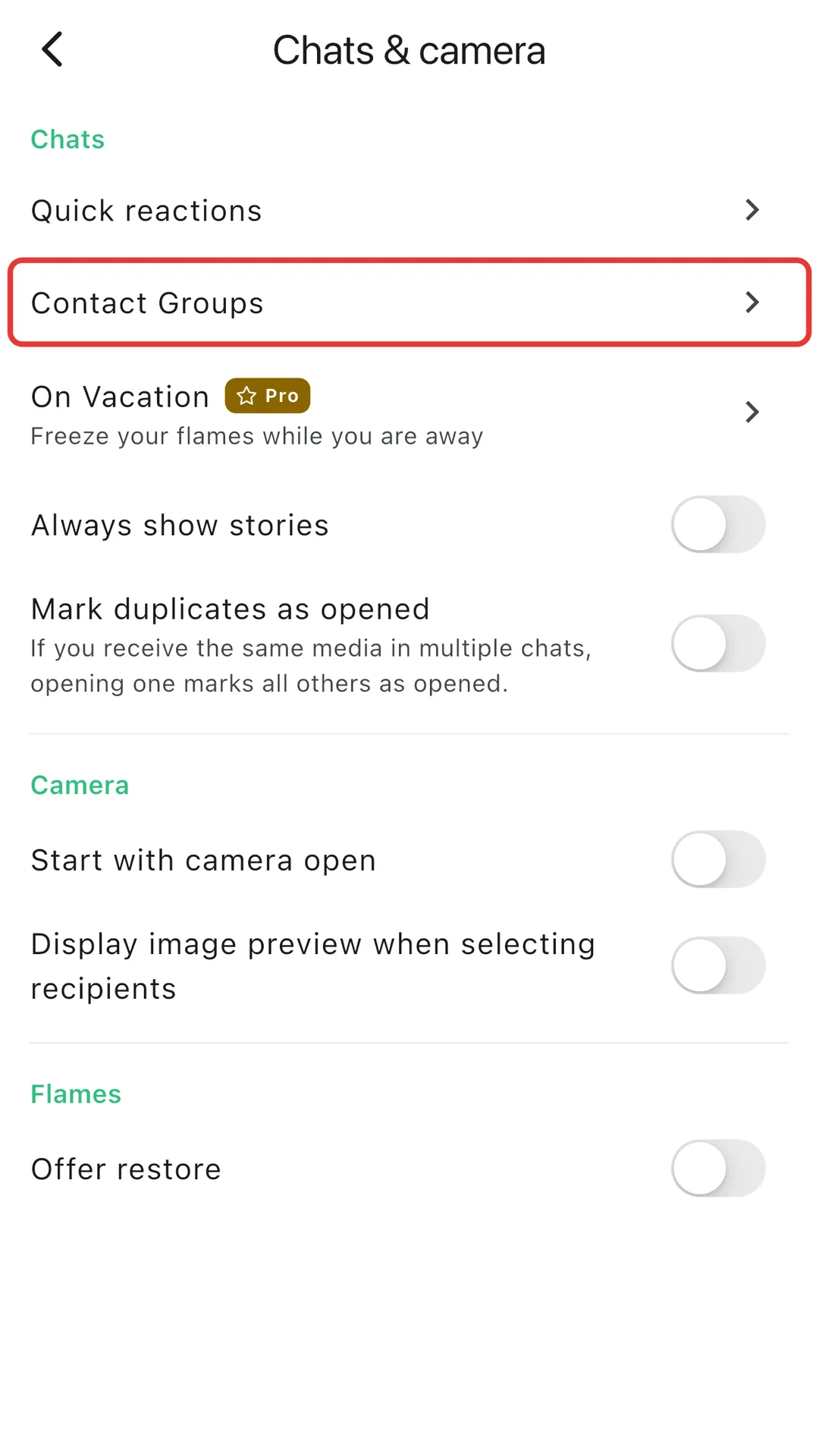
Where to find it: Settings > Chats & camera > Contact Groups.

A list of contact groups in twonly: Climbing, Family and Uni, each with its members and features.
Your contact groups
Editing a contact group: name, members, features and the label colors.
Members, features and colors
The twonly chat settings. The entry Contact Groups is marked with a red frame.
In the chat settings

Labels

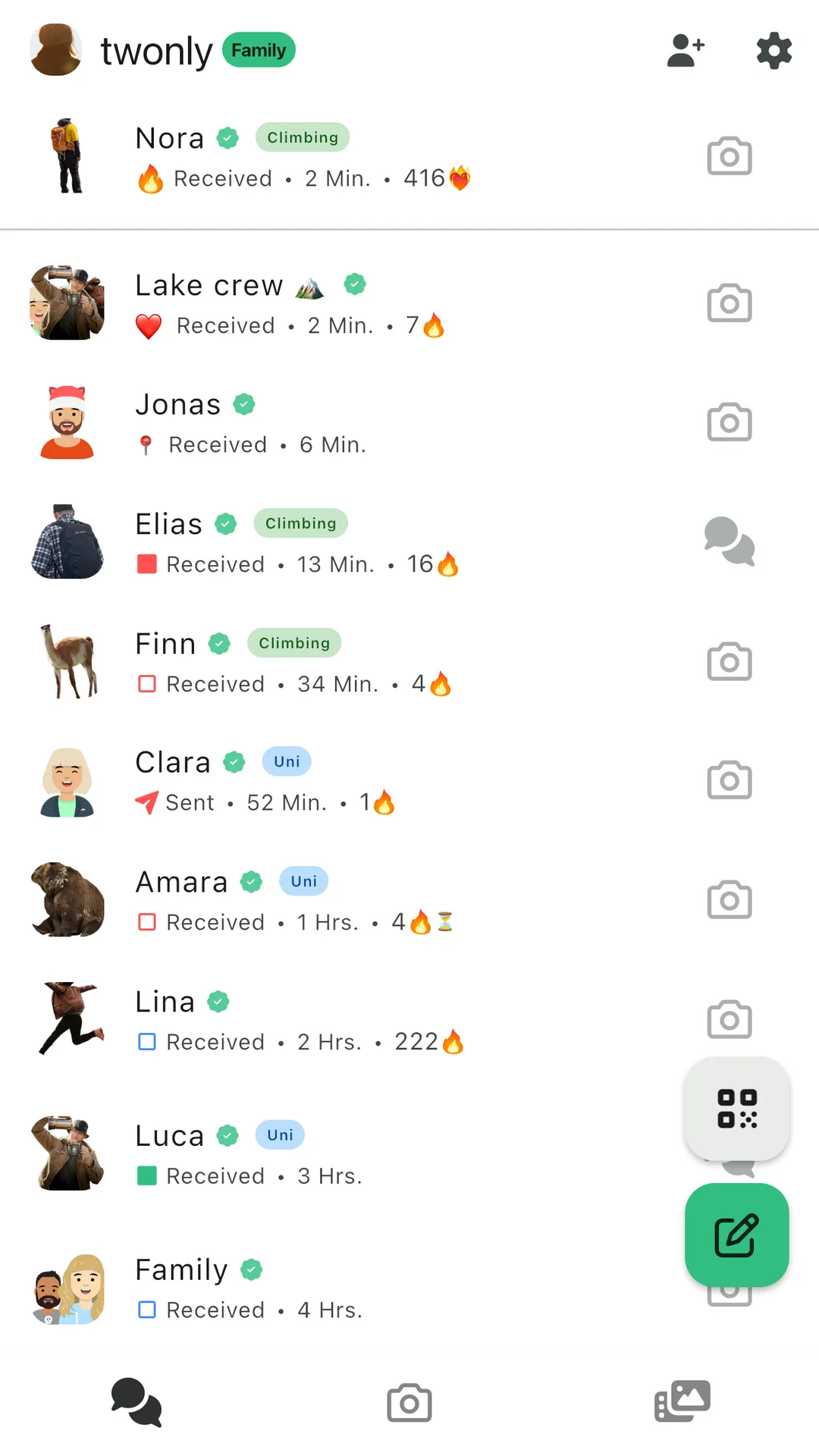
A colored label next to each member shows the group at a glance.

The twonly chat list. Some contacts have a small colored label next to their name, like Climbing or Uni.
Labels in the chat list

Shortcut and stories

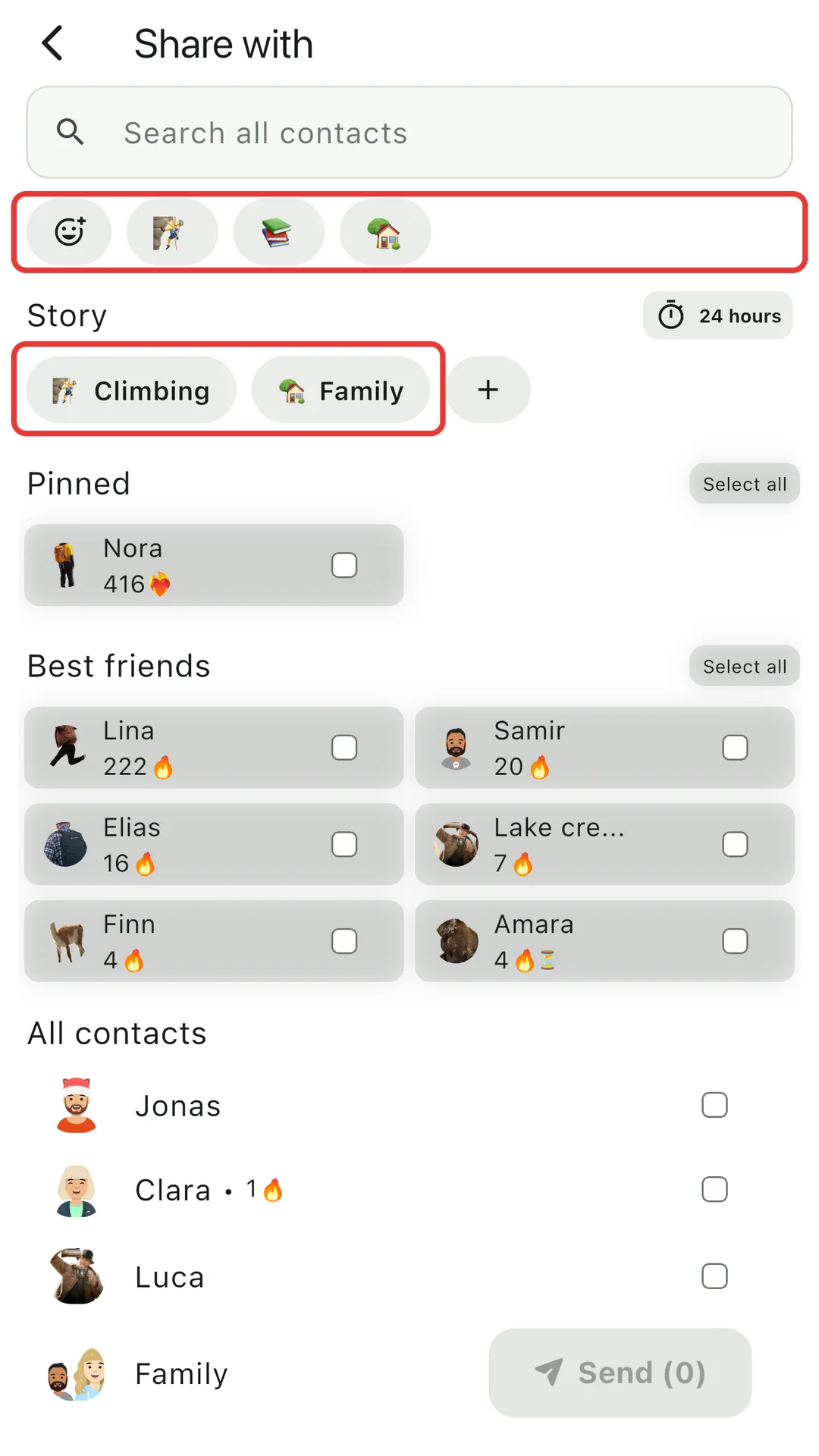
When you share a photo, tap the group’s emoji to select all members at once. Or post a story only to that group, so your climbing photos reach your climbing friends and nobody else.

The twonly share screen. The row of group emojis at the top and the contact groups offered as story audiences are marked with red frames.
Group shortcuts and story audiences

Home screen widget

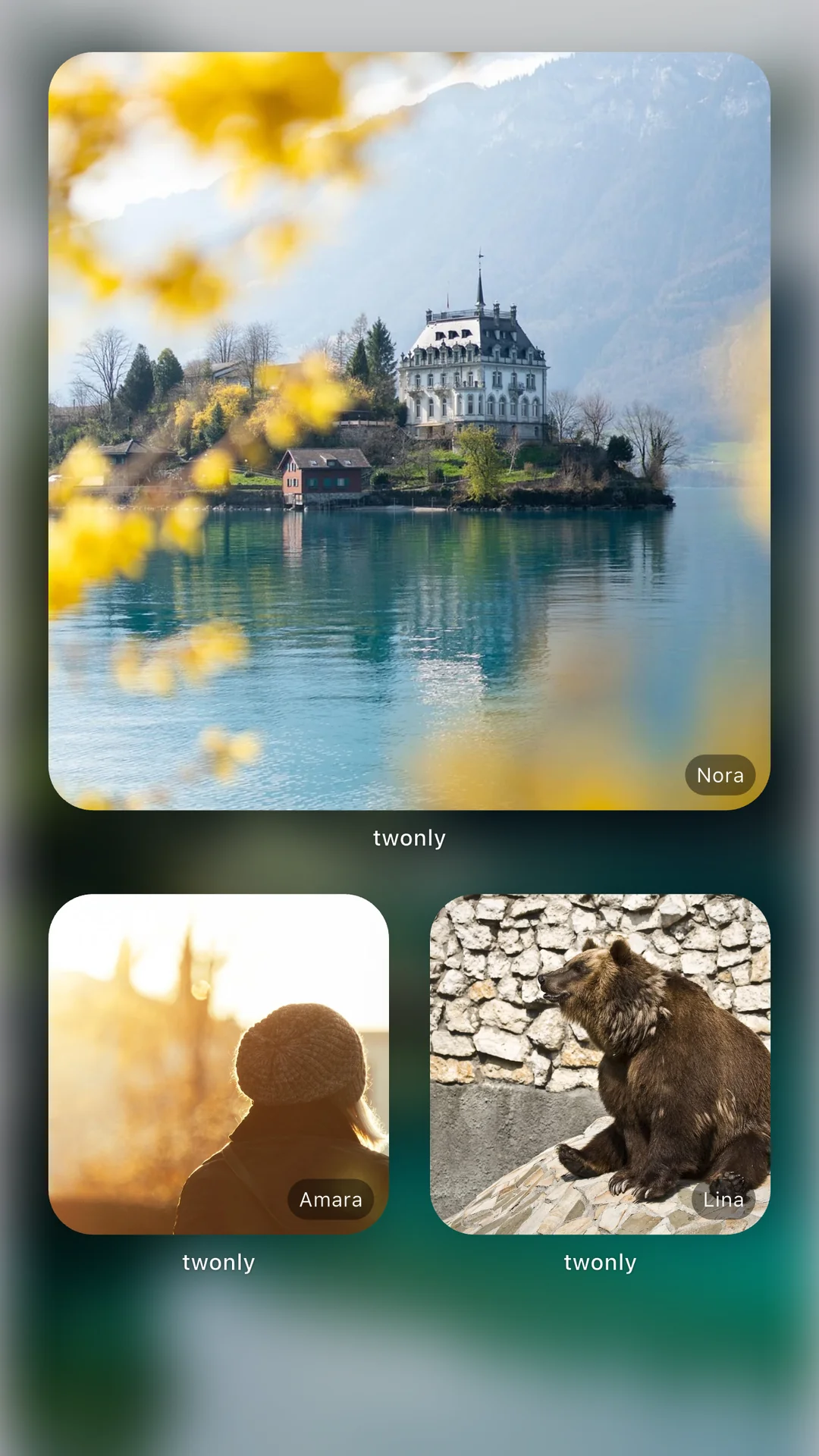
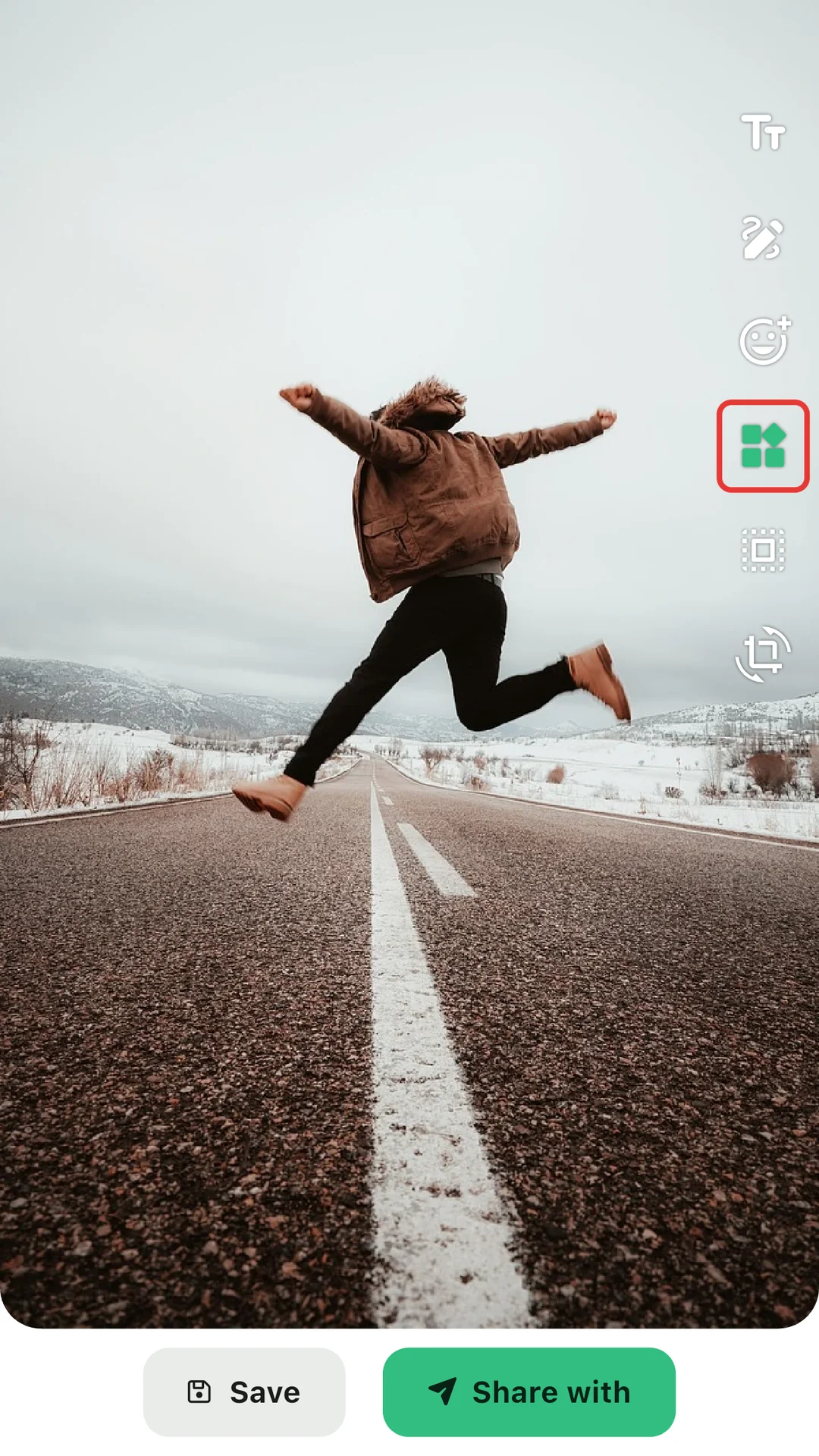
Put a group on your home screen and see the newest photos your friends send to it, without opening the app. More in the help: Home screen widget.
A phone home screen with a twonly widget showing a photo from a friend.
The widget on the home screen
The twonly image editor. The button to send the photo to home-screen widgets is turned on and marked with a red frame.
Send a photo to the widget

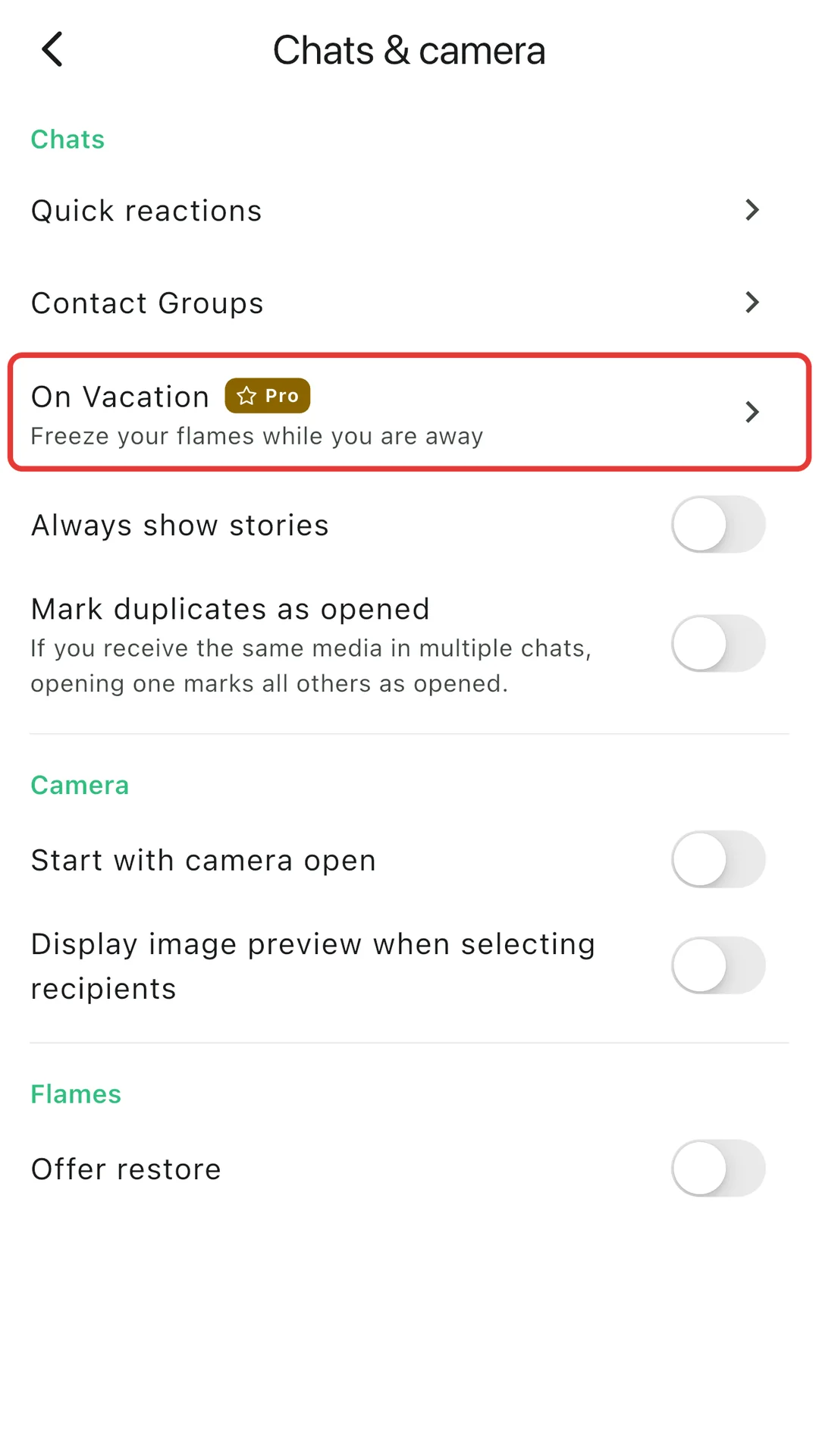
On Vacation

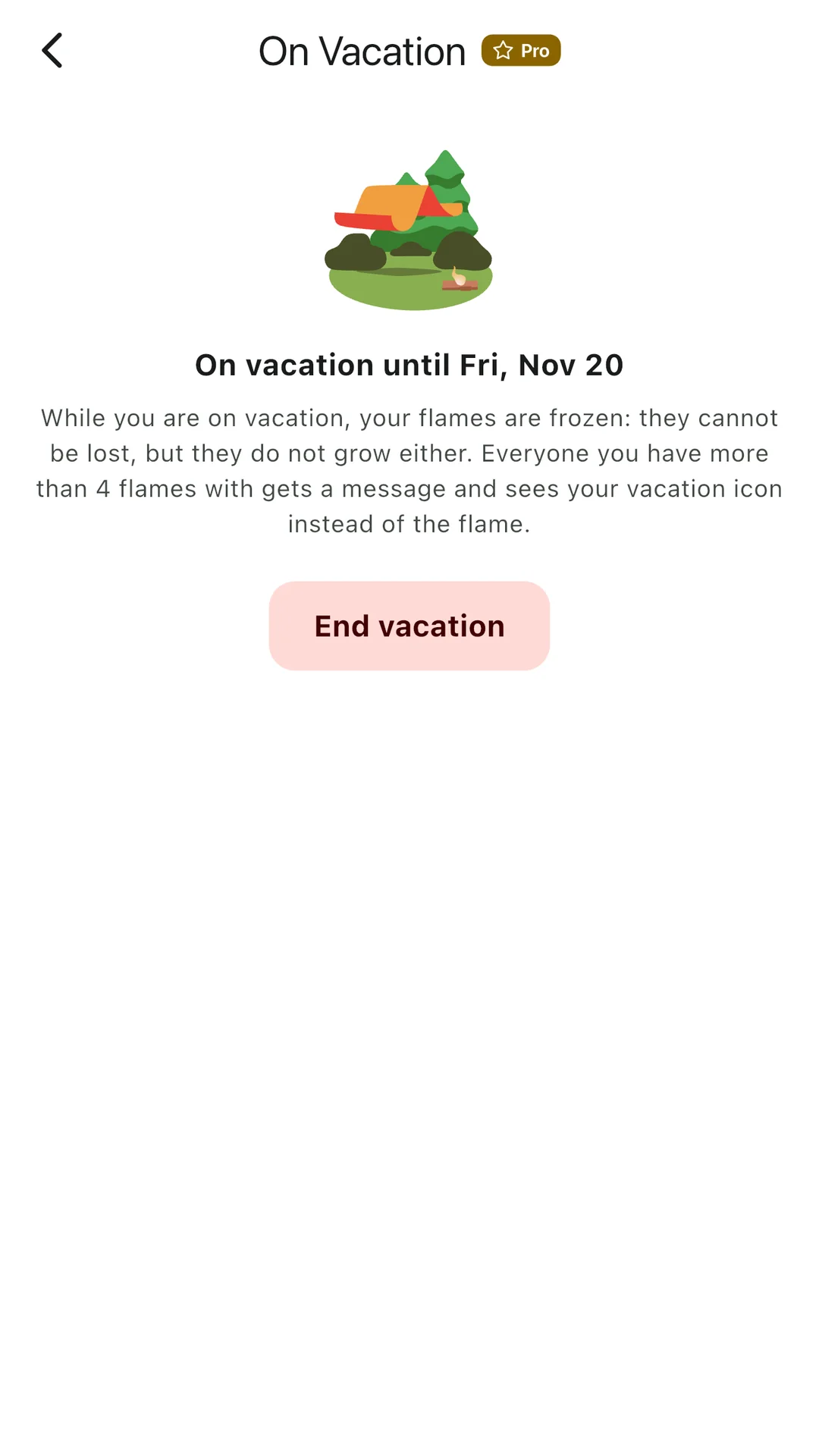
Taking a break from your phone? Turn on On Vacation and your flames are frozen until you’re back: they can’t be lost, but they don’t grow either. Your friends see a short note that you’re away.

Where to find it: Settings > Chats & camera > On Vacation.

The twonly On Vacation screen with a tent icon, the end date and a button to end the vacation.
Your flames are frozen
The twonly chat settings. The entry On Vacation is marked with a red frame.
In the chat settings

Photos

Send as a real twonly

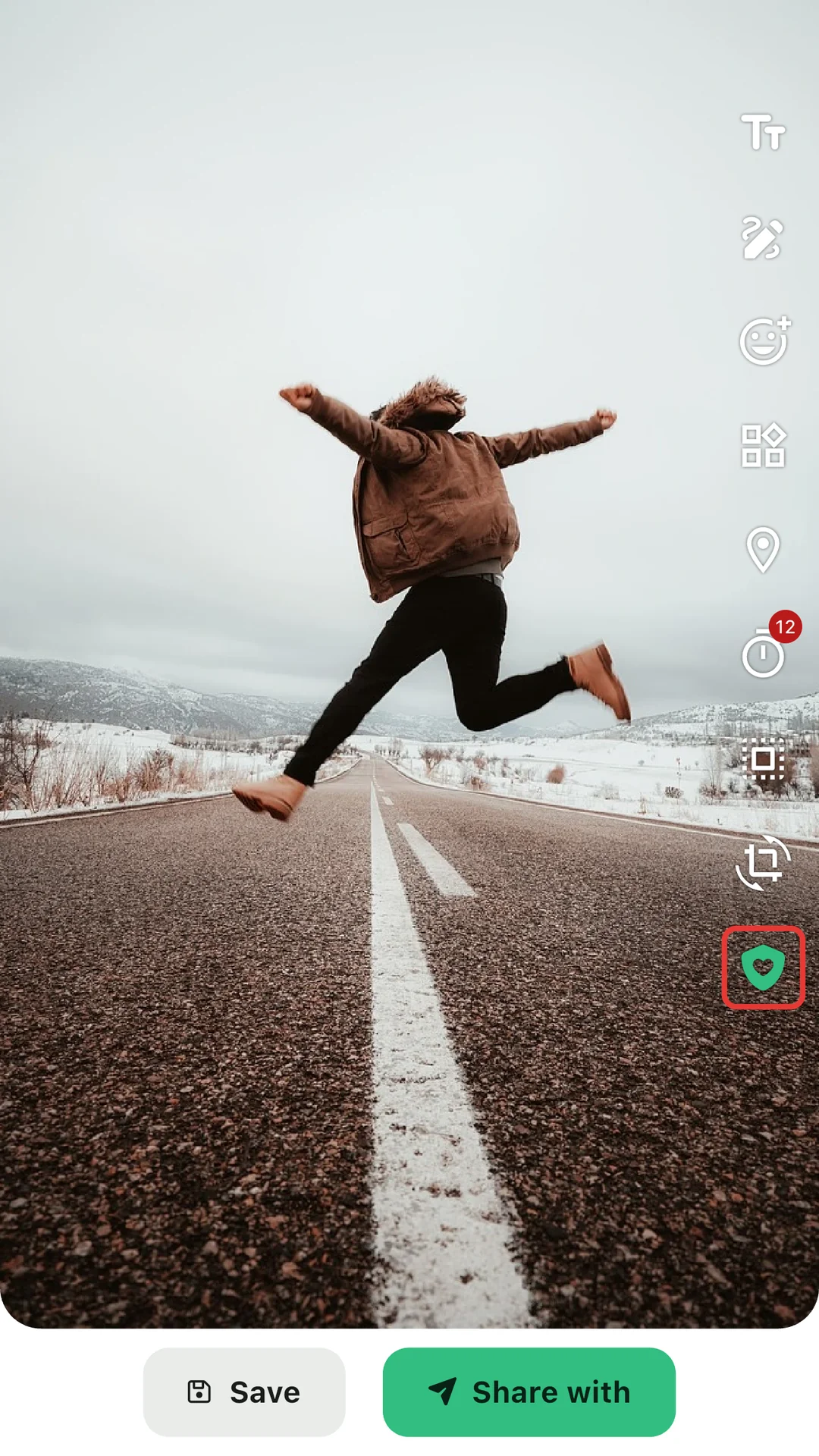
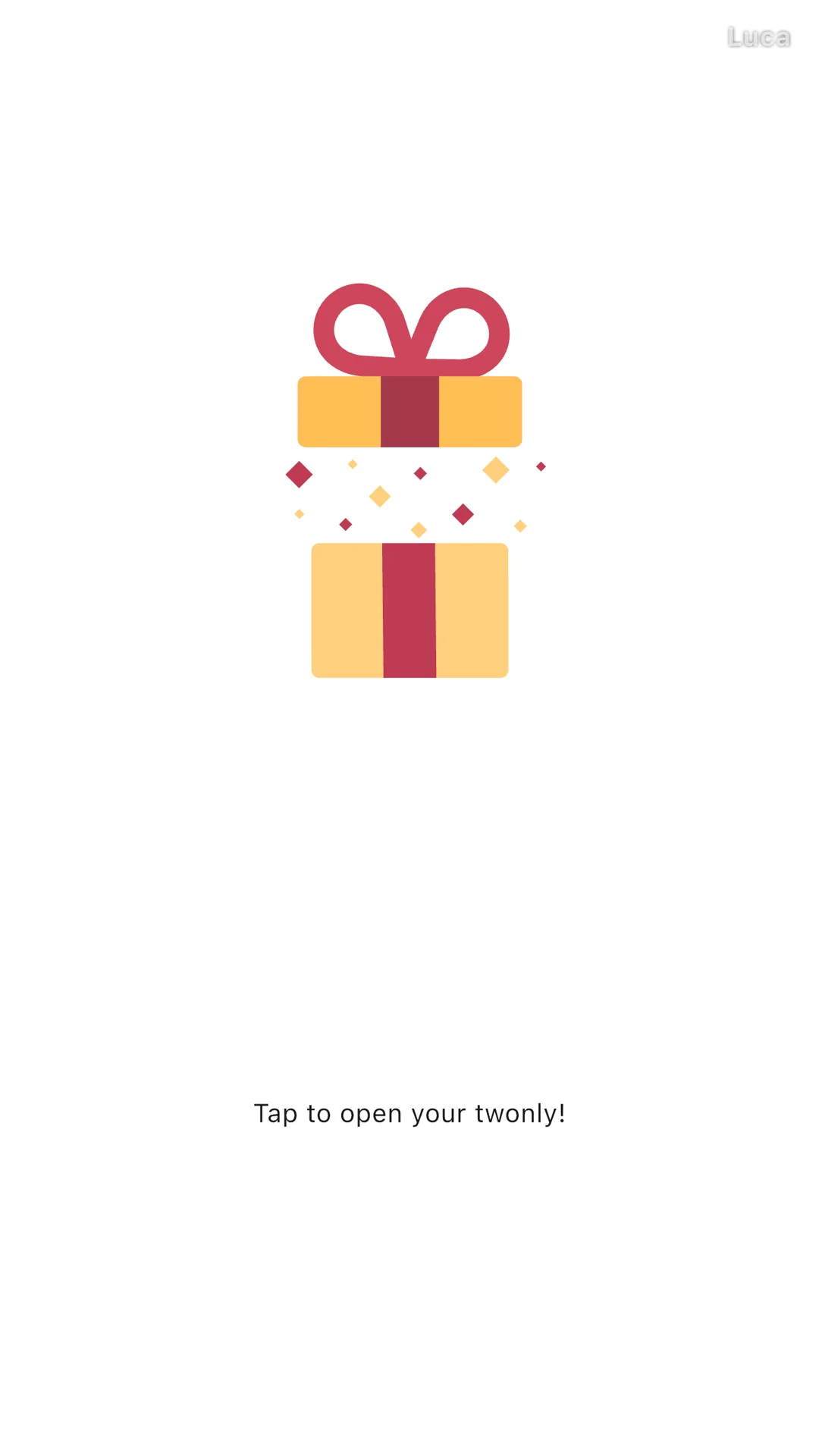
For photos that are meant for one person only. Turn on the shield with the heart before sending, and your friend has to unlock the photo with their fingerprint or face. Until then it waits in the chat as a wrapped present.

Where to find it: In the editor, before you send the photo: the shield with the heart.

The twonly photo editor. A button with a shield and a heart is turned on and marked with a red frame.
Turn on the shield
A twonly photo that has not been opened yet, shown as a wrapped present.
It waits as a present

Open a photo again

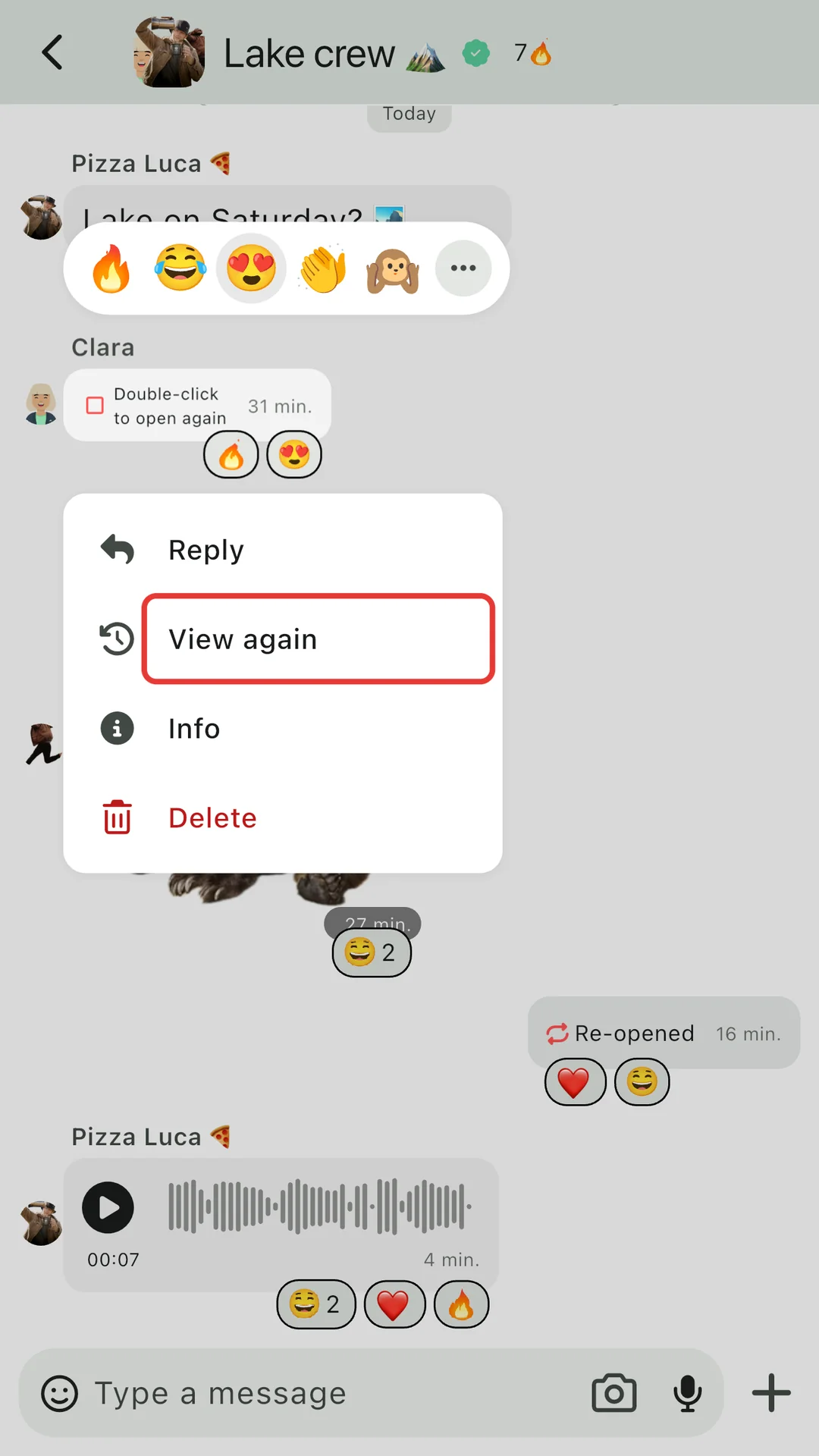
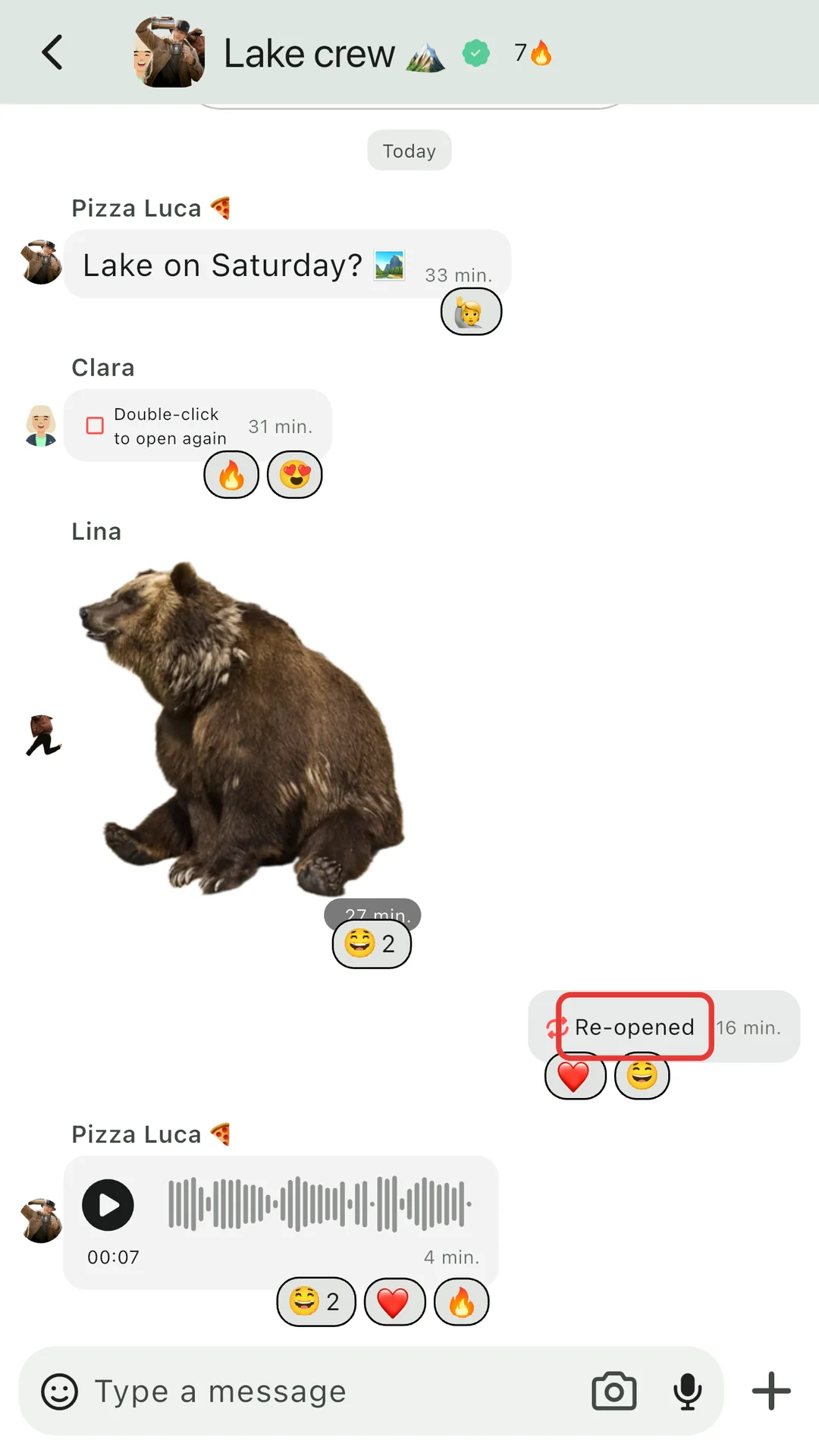
Missed a detail? Open a photo a second time, including photos you sent yourself. Your friend sees that you looked again, so nothing happens behind anyone’s back.

Photos with a timer and photos sent as a real twonly can’t be opened again.

Where to find it: Long-press the photo in the chat and tap View again.

A twonly chat where a photo is long-pressed. The context menu shows the option View again, marked with a red frame.
Long-press and View again
A twonly group chat. A photo sent by me is marked Re-opened, marked with a red frame.
Your friend sees it was re-opened

Places

Live location

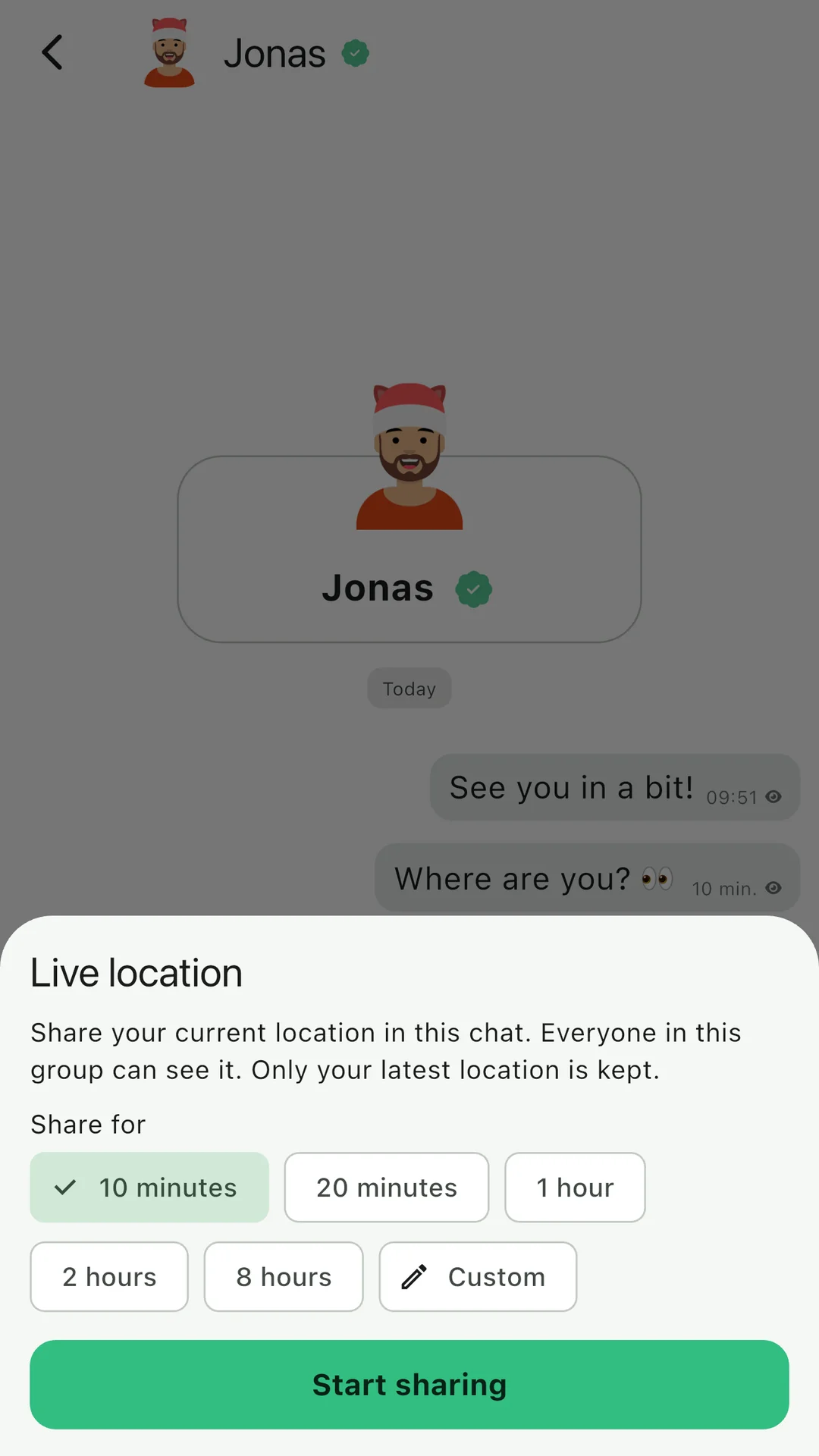
Meeting up? Share your live location in a chat for as long as you choose, and stop at any time. Only your latest position is kept, and it’s end-to-end encrypted like everything else in twonly.

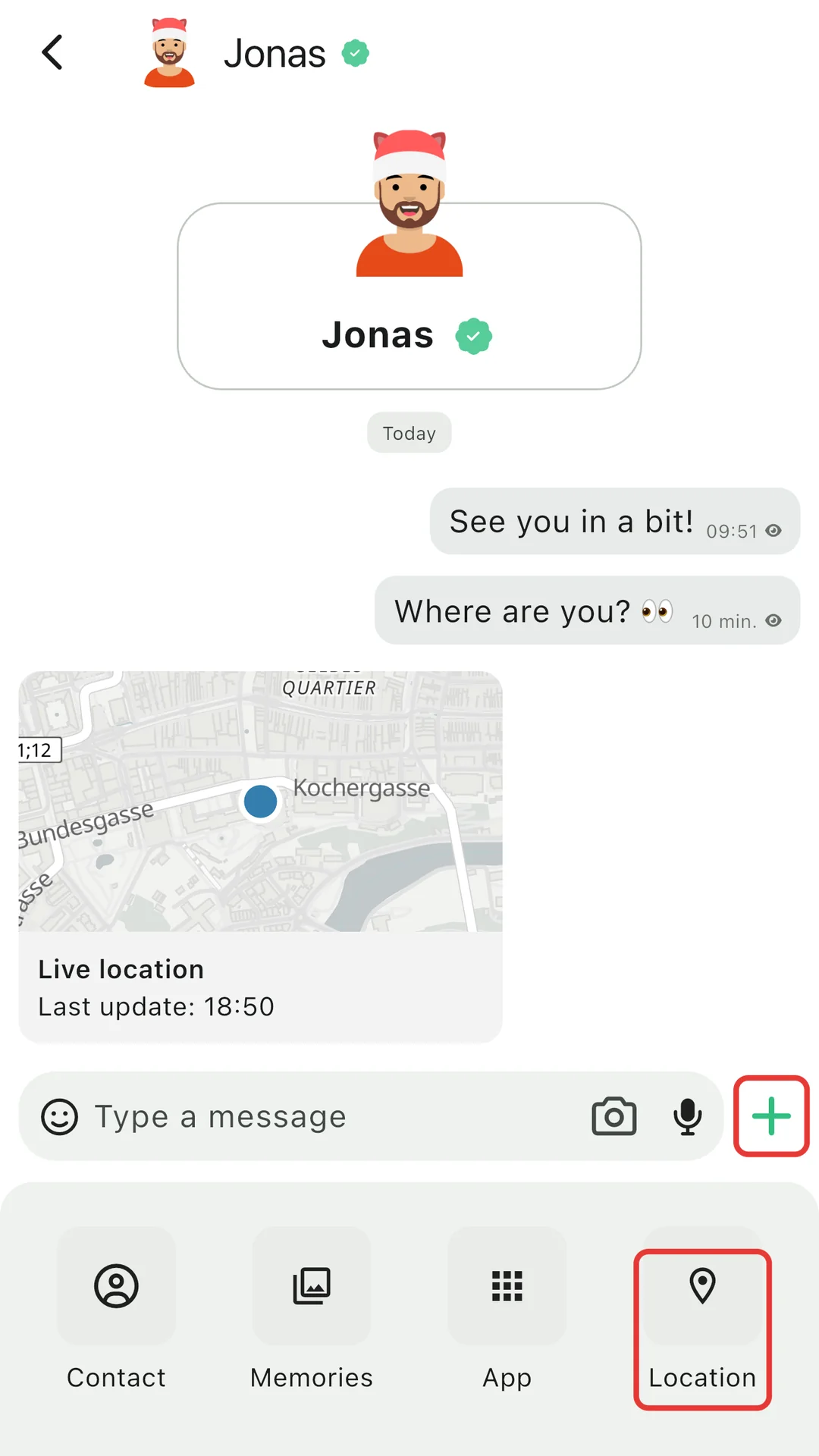
Where to find it: In a chat, tap + and then Location.

A twonly chat with the plus menu open. The plus button and Location are marked with red frames.
Tap + and then Location
The twonly Live location screen with options to share for minutes, hours or a custom time, and a Start sharing button.
Choose for how long

Story map

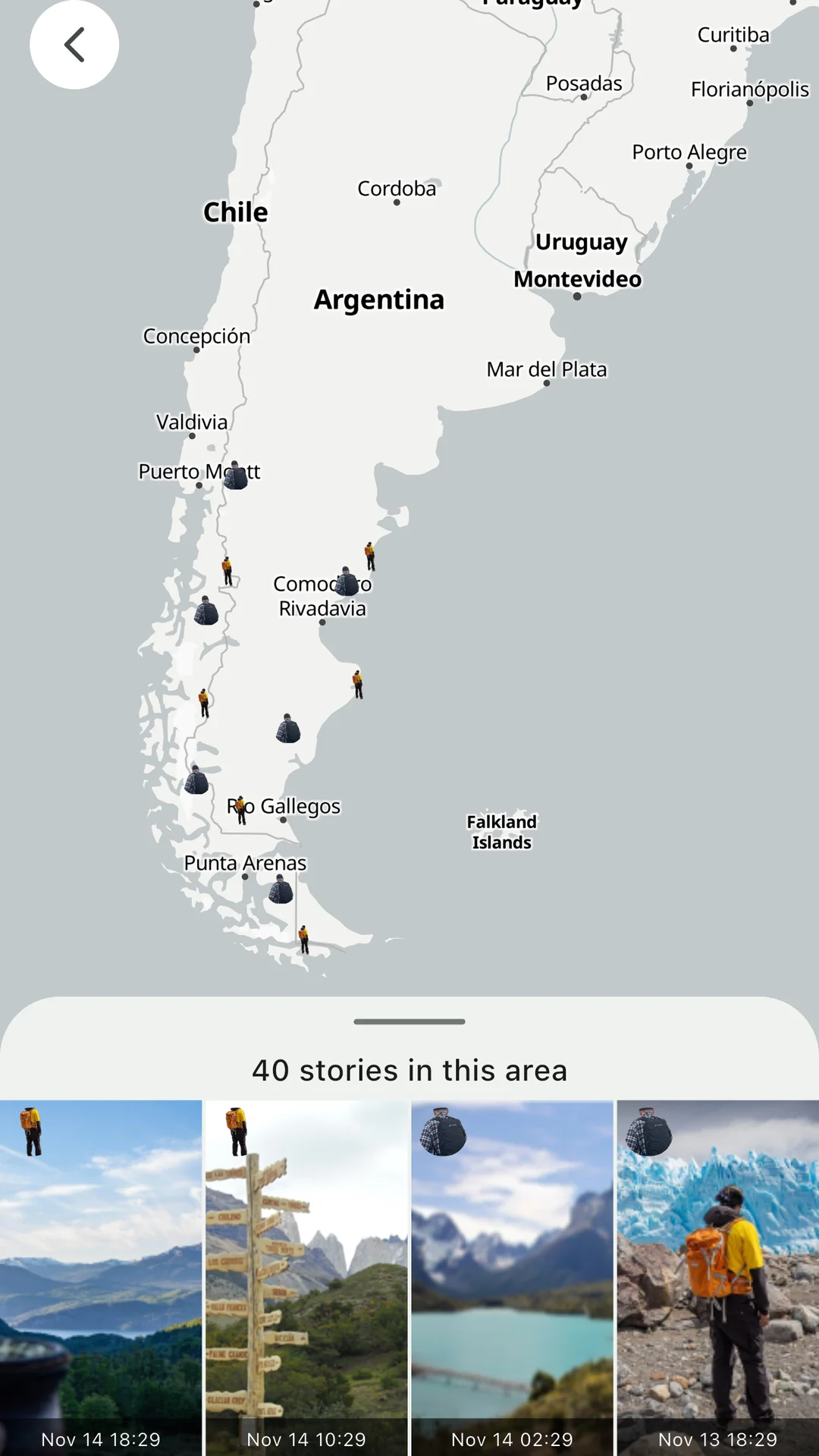
See where your friends’ stories were taken. Stories with a location appear on a map, so you can follow a friend’s trip from stop to stop. Your own location is only added when you tap the pin in the editor.
Where to find it: At the start of the stories, at the top of your chat list.

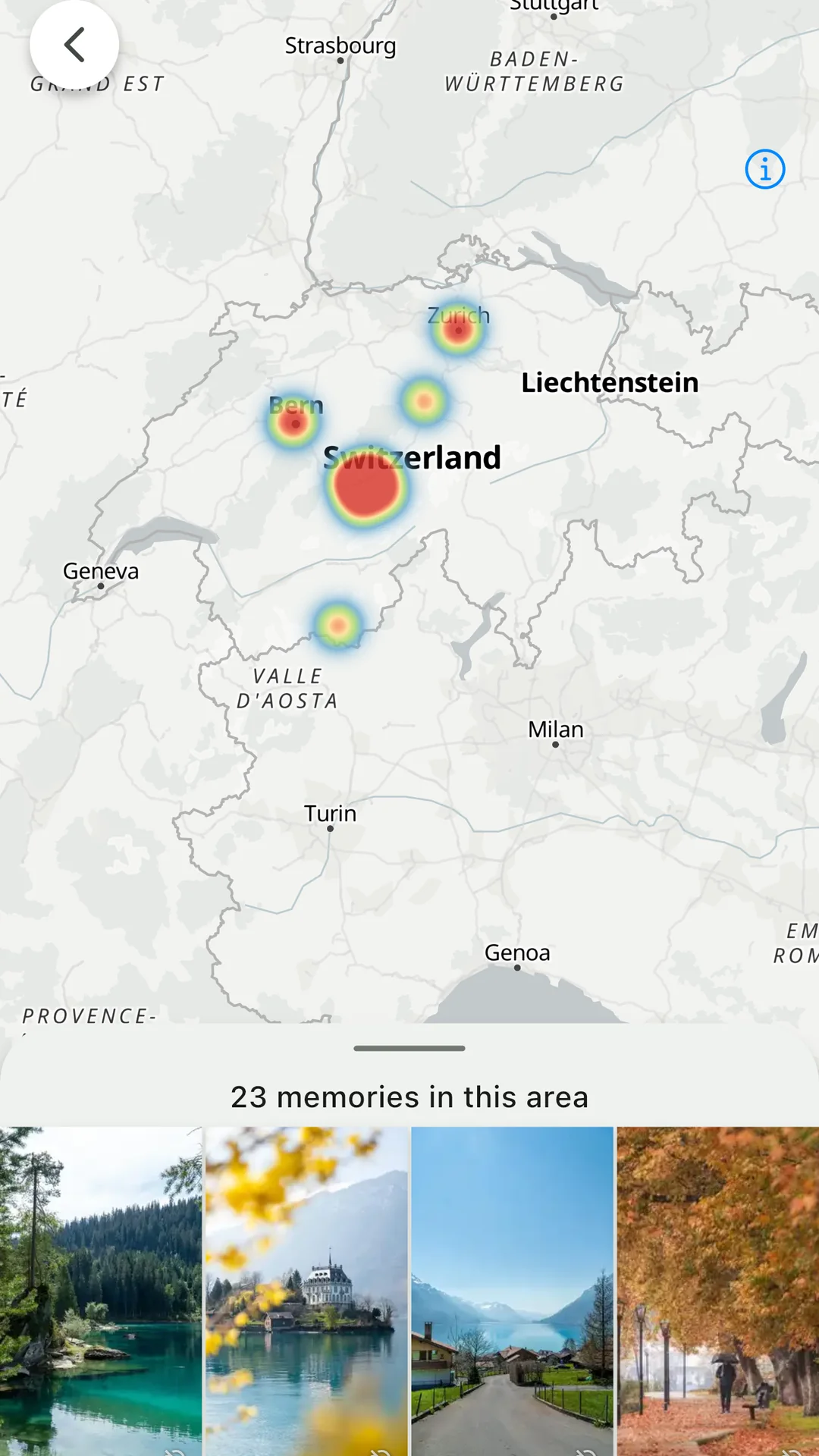
A map of Patagonia with friends’ stories along a road trip, and below it the photos of the stories in this area.
Your friends’ stories on a map
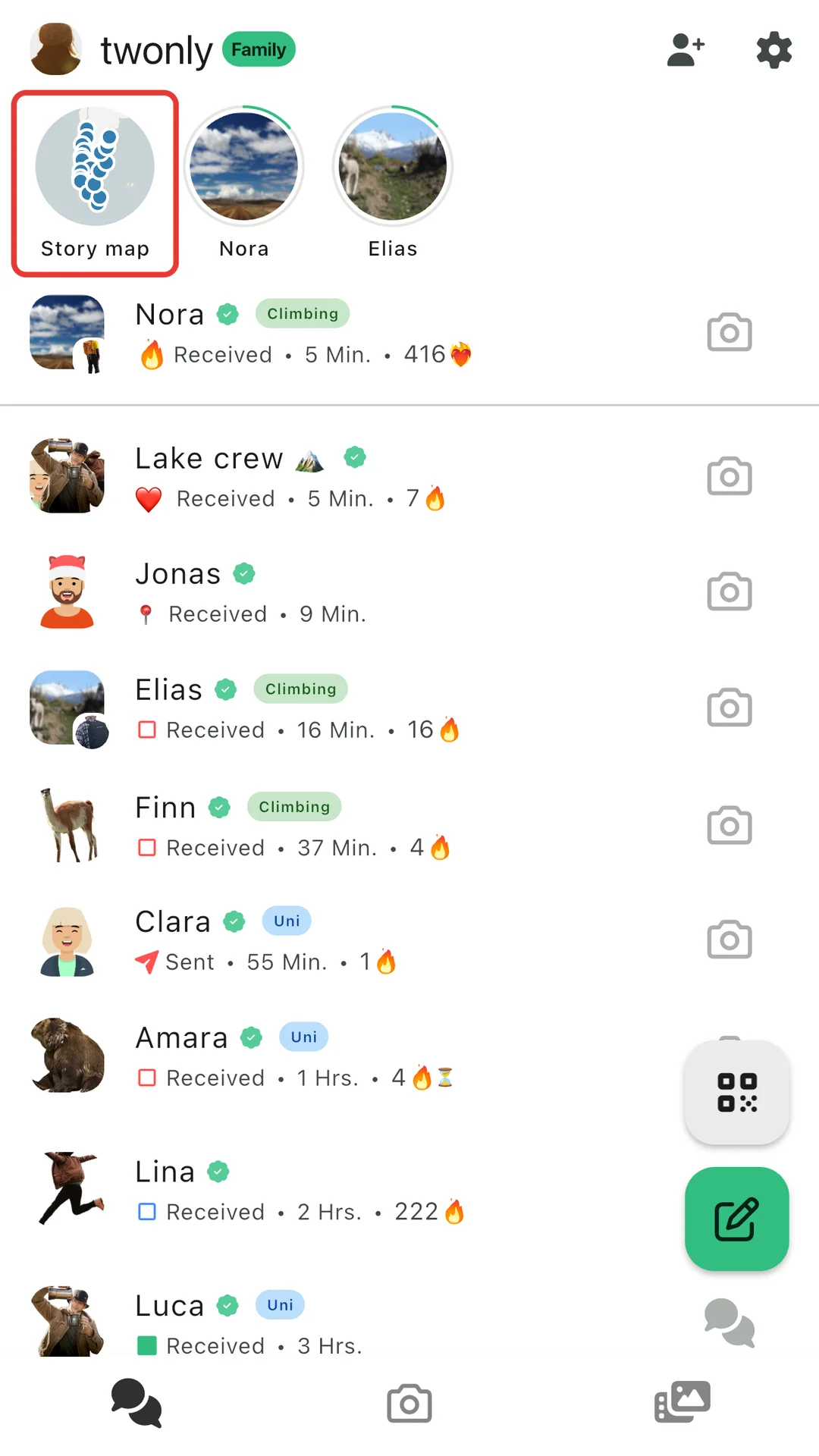
The twonly chat list. At the start of the stories row is a small map named Story map, marked with a red frame.
Open it from the chat list
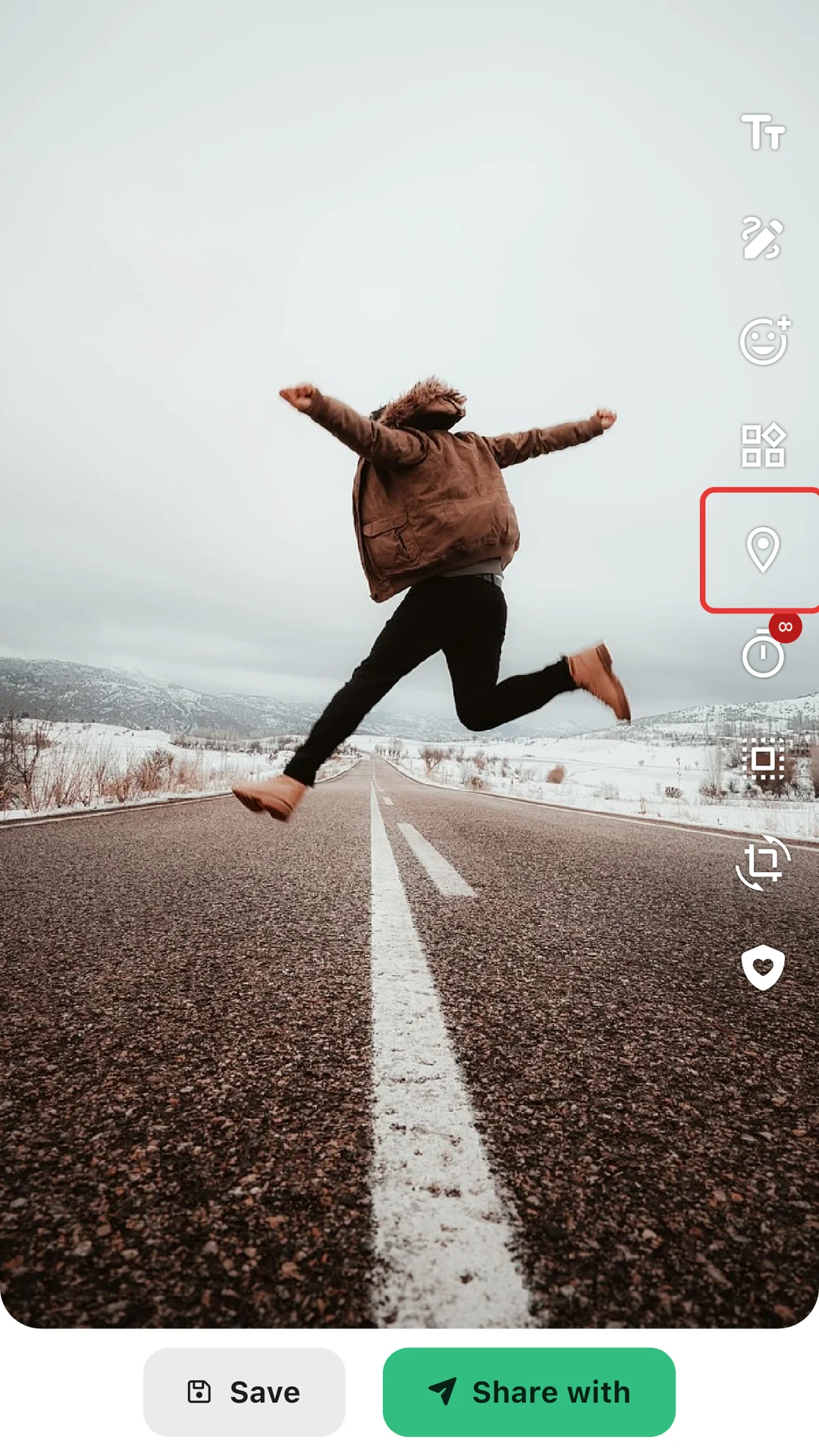
The twonly photo editor. The pin button that adds the location is marked with a red frame.
Add your location to a story

Memories

Memories on a map

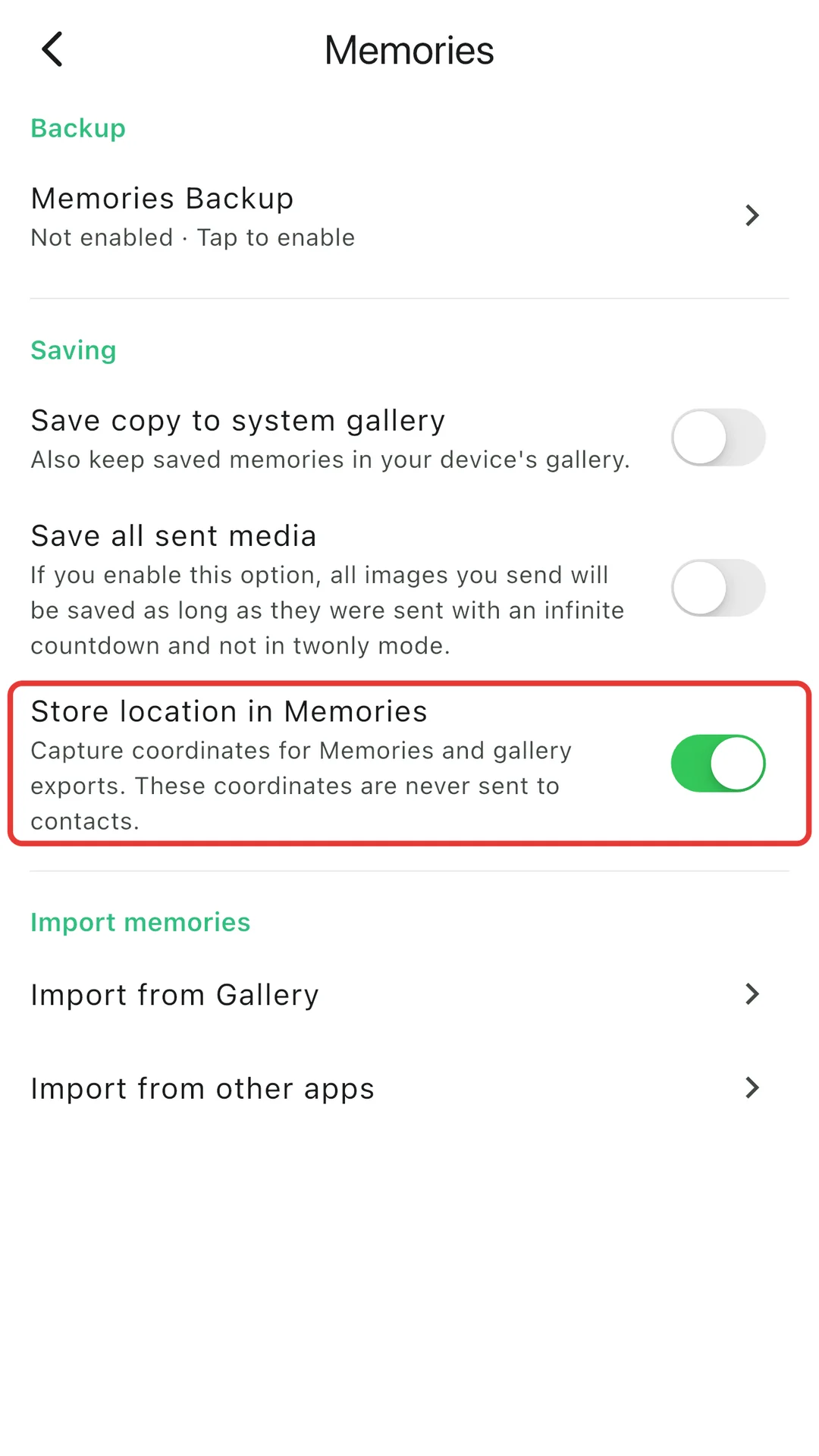
Relive your trips by place. With Store location in Memories turned on, twonly saves where you took each photo or video and shows them on a map. The location stays in your Memories and is never sent to your contacts.

Where to find it: Settings > Memories > Store location in Memories.

A map with small photo thumbnails placed at different cities, from the twonly Memories map.
Your Memories by place
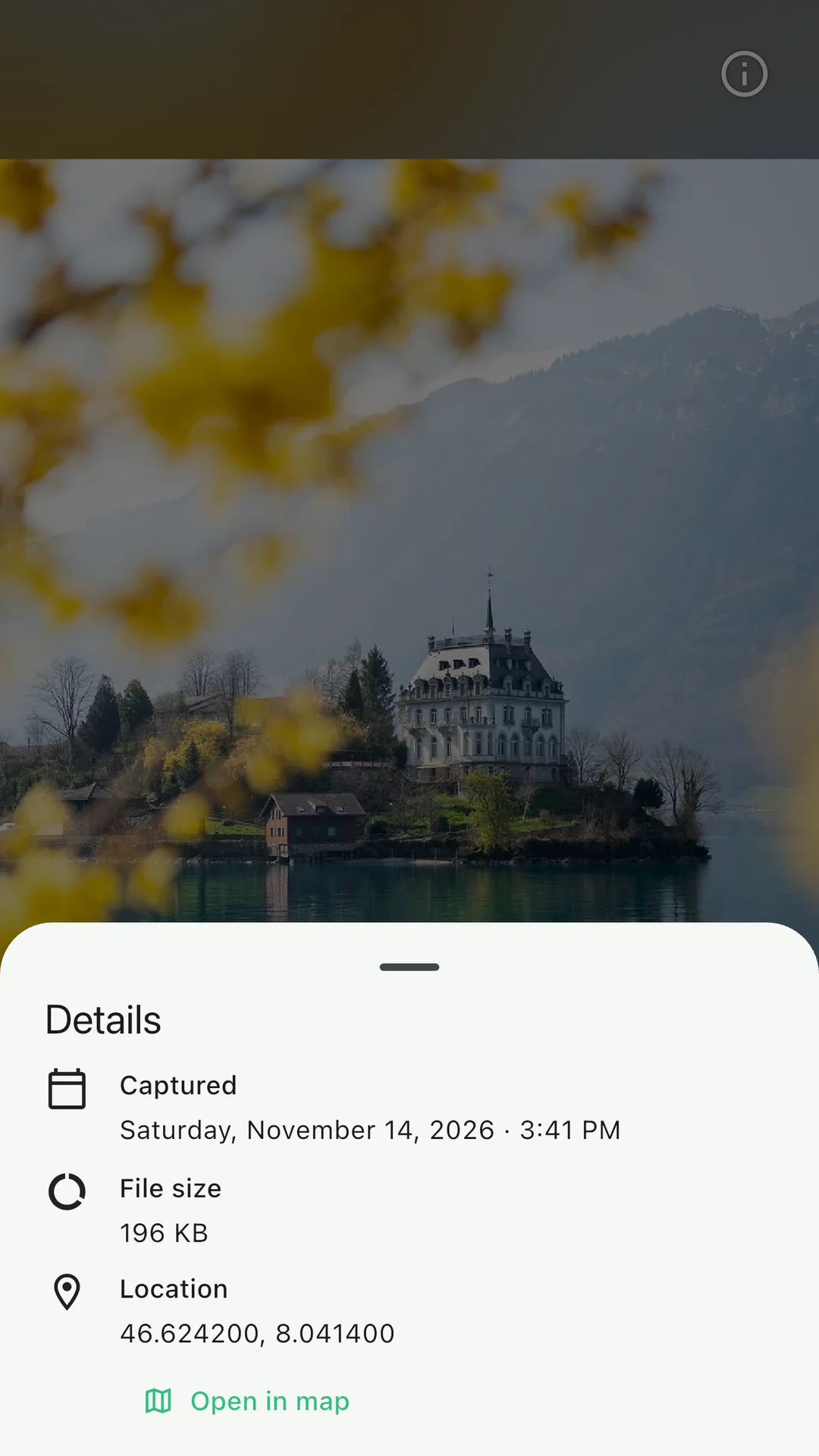
The details of a saved photo in twonly, showing the place where it was taken.
Where a photo was taken
The twonly Memories settings. The switch Store location in Memories is on and marked with a red frame.
Turn it on in the settings

Encrypted Memories backup

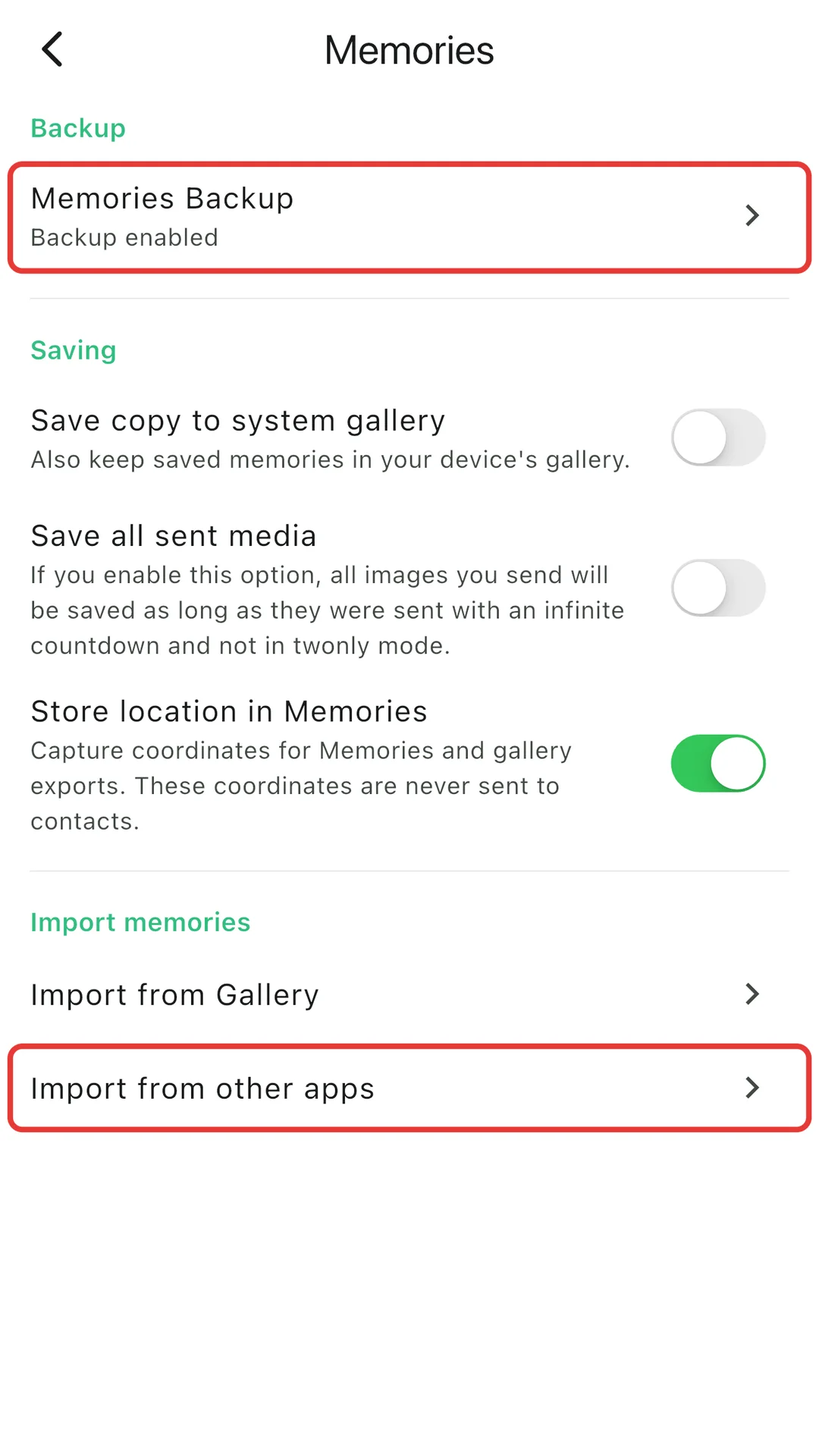
Keep your Memories safe, even if you lose your phone. With a plan, every photo and video is encrypted on your phone before it’s uploaded, so only you can see it. When you get a new phone, your Memories come with you.

More in the help: Memories Backup.

Where to find it: Settings > Memories > Memories Backup.

The twonly Memories settings. The entries Memories Backup, showing that the backup is enabled, and Import from other apps are marked with red frames.
Backup and import in the Memories settings

Import from Snapchat

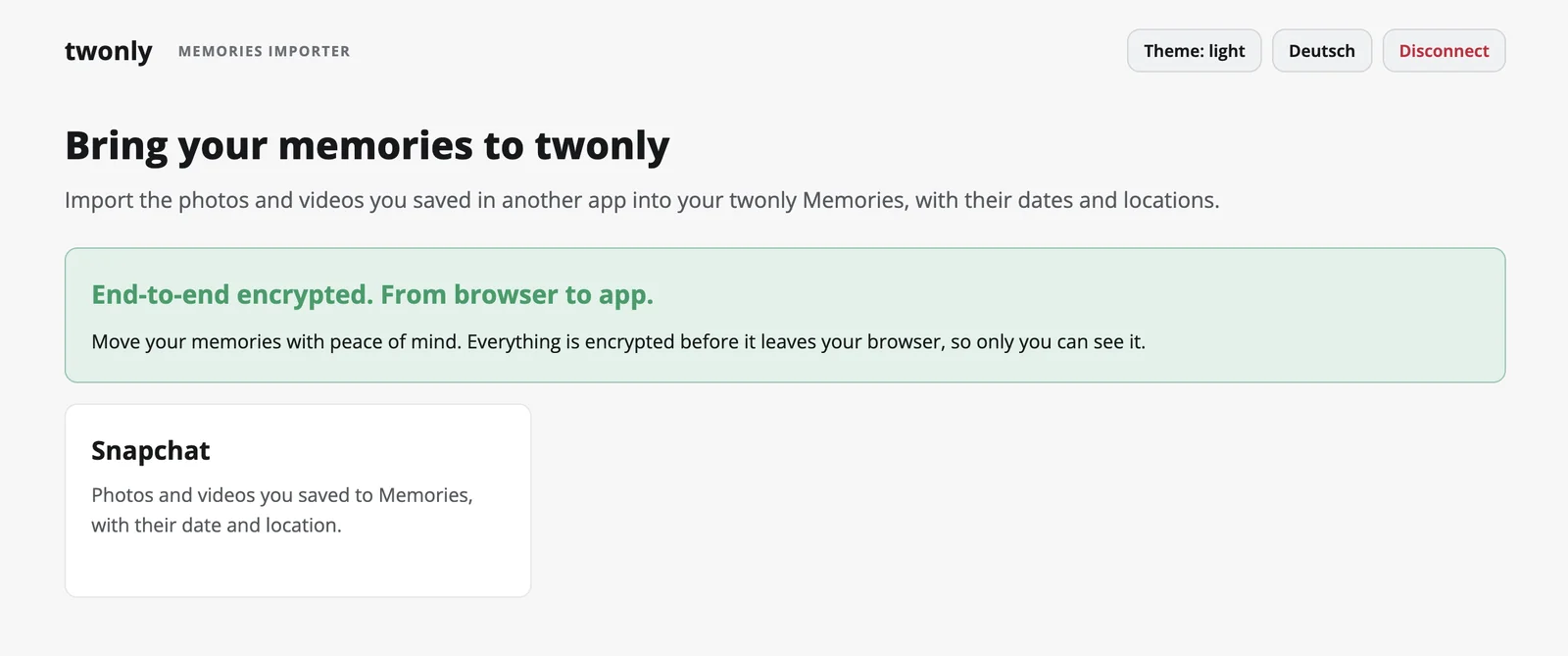
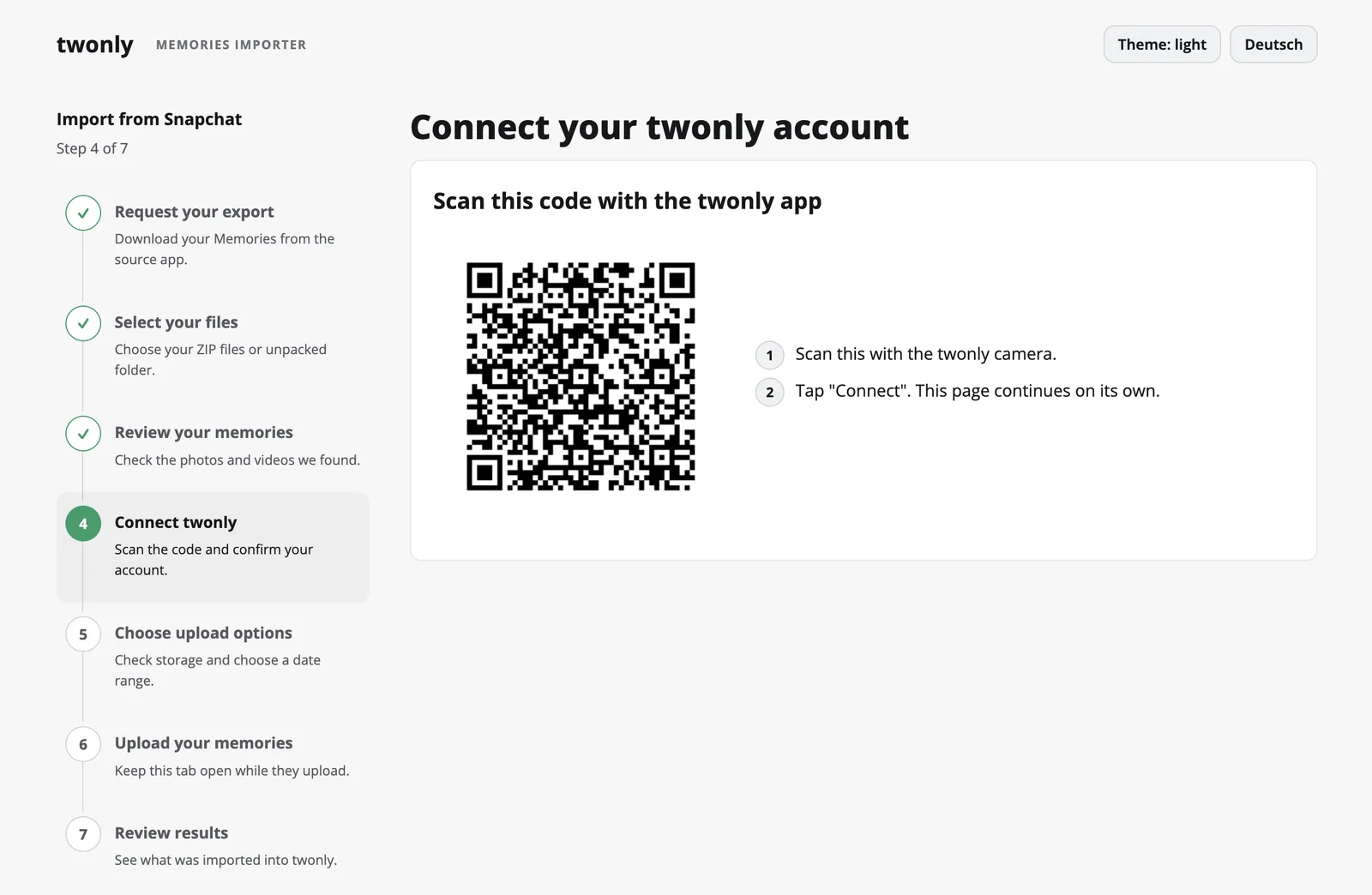
Bring your saved Snapchat Memories with you, with their dates and locations. The importer runs in your browser and encrypts everything before it’s uploaded. It can only add Memories: it never sees, changes or deletes the ones you already have.

More in the blog post: how the encrypted import works.

Where to find it: Open import.twonly.eu on your computer and connect it with the twonly camera.

The start page of the twonly memories importer in a browser, with Snapchat as a source.
The importer in your browser
The memories importer showing a QR code to connect it with the twonly app.
Connect it with a QR code

Privacy and security

Account recovery with trusted friends

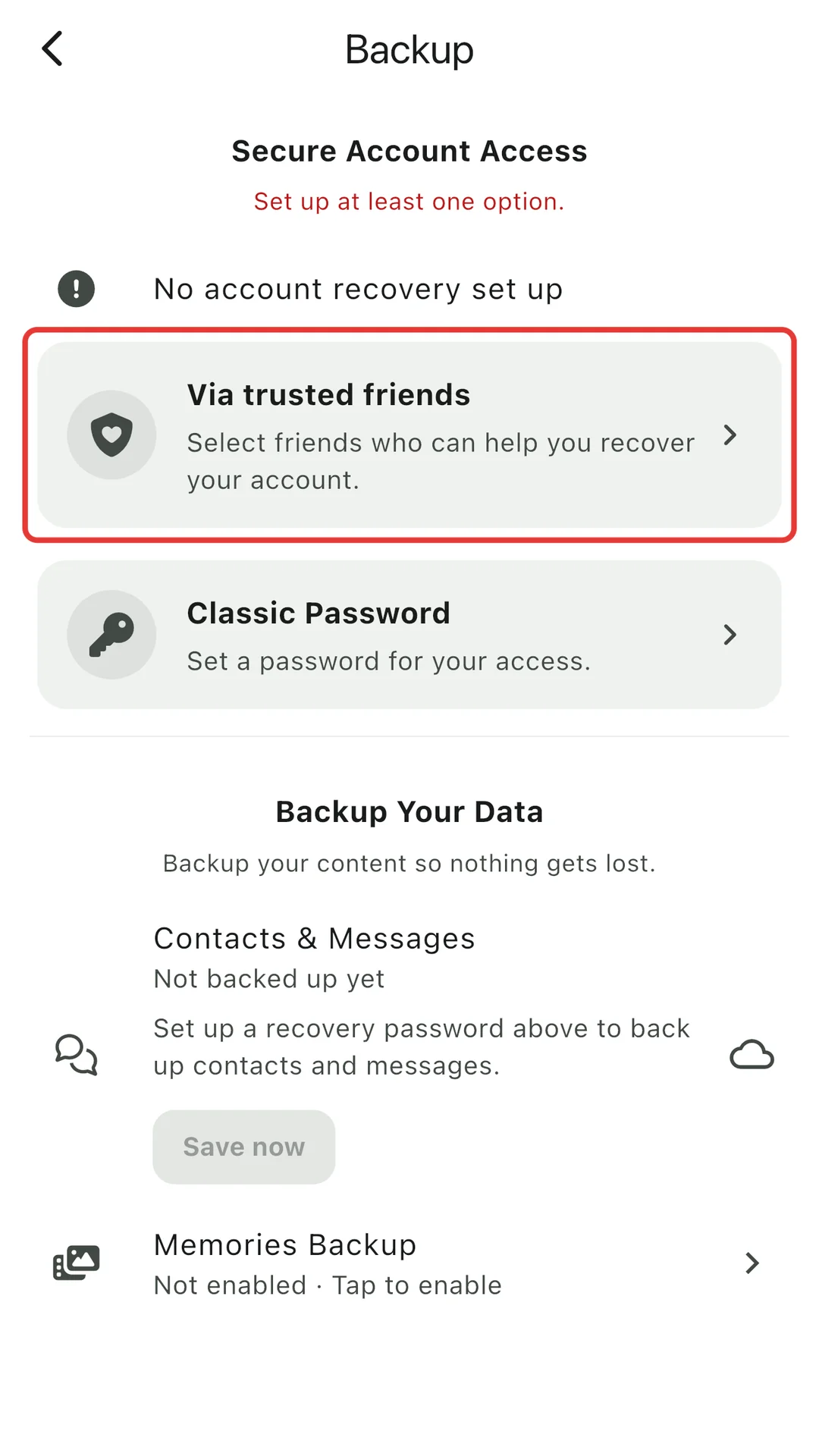
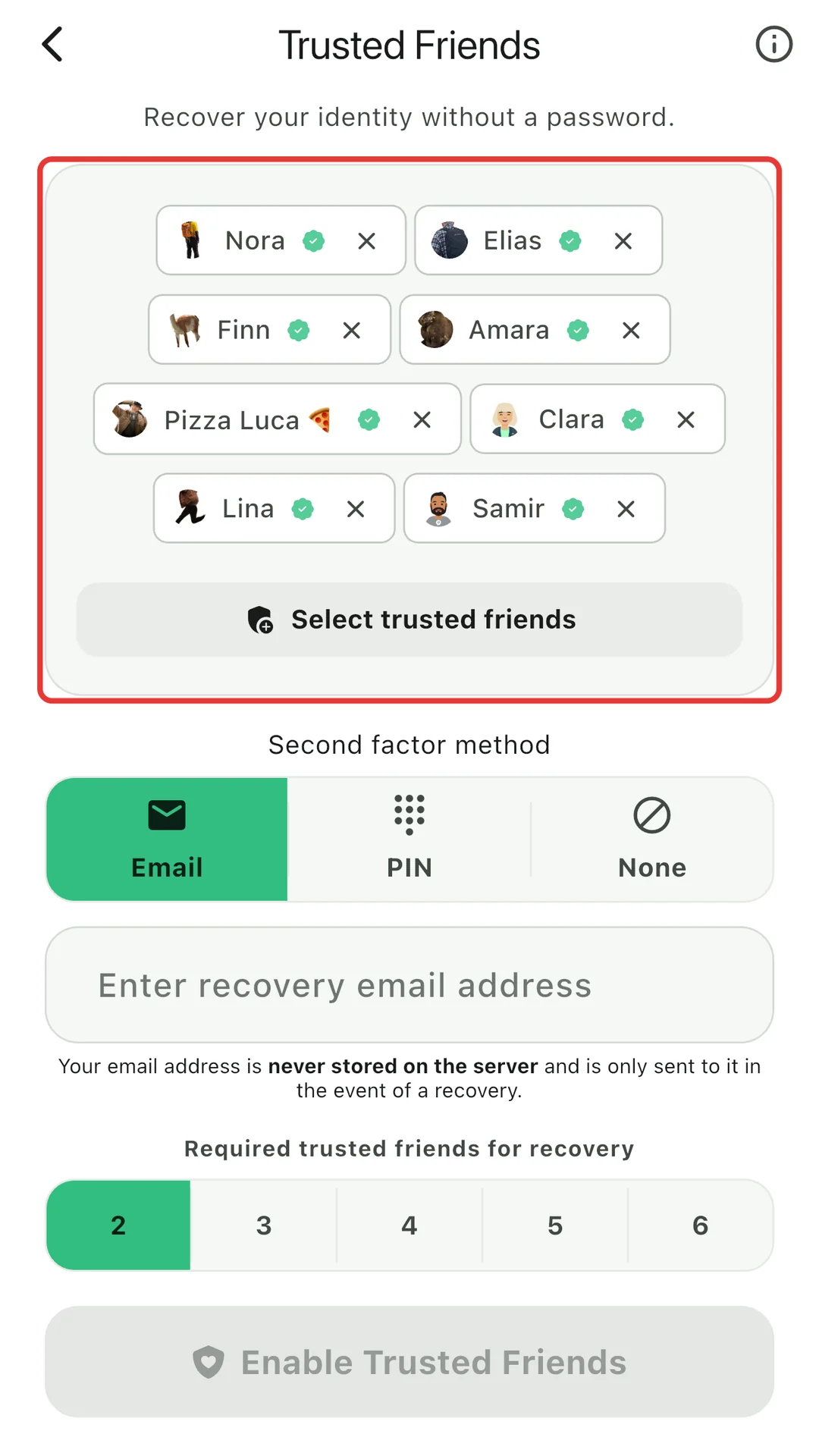
Lost your phone and forgot your password? Choose a few trusted friends who can help you get your account back. Each of them keeps an encrypted part of your key. When you need it, enough of them confirm, and your account is restored. A PIN or your email adds a second layer of protection.

Read how it works in the blog post Introducing Passwordless Backups, or in the help: Passwordless Backup.

Where to find it: Settings > Backup > Via trusted friends.

The twonly backup settings. Under Secure Account Access, the option Via trusted friends is marked with a red frame.
Recovery via trusted friends
The twonly Trusted Friends screen. A card with the selected friends is marked with a red frame; below it the choice of a second factor and how many friends are needed.
Choose your trusted friends

Verify your friends

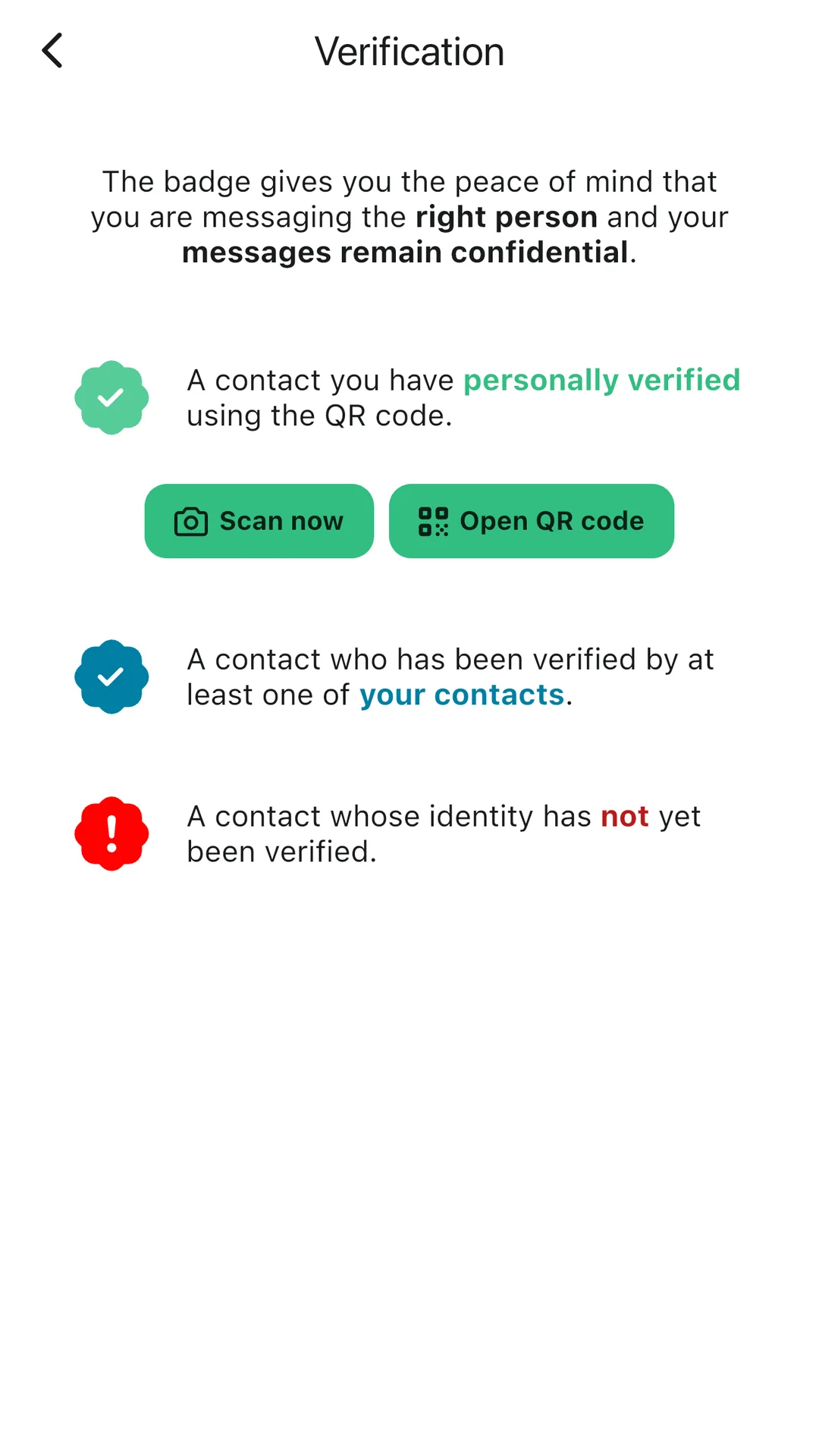
twonly doesn’t use phone numbers, so a badge shows who you’re really talking to. Scan a friend’s QR code when you meet, and their badge turns green. Blue means one of your contacts has verified them, red means nobody has yet. Can’t meet? Compare the safety number instead.

More in the help: Verifying your friends’ identity.

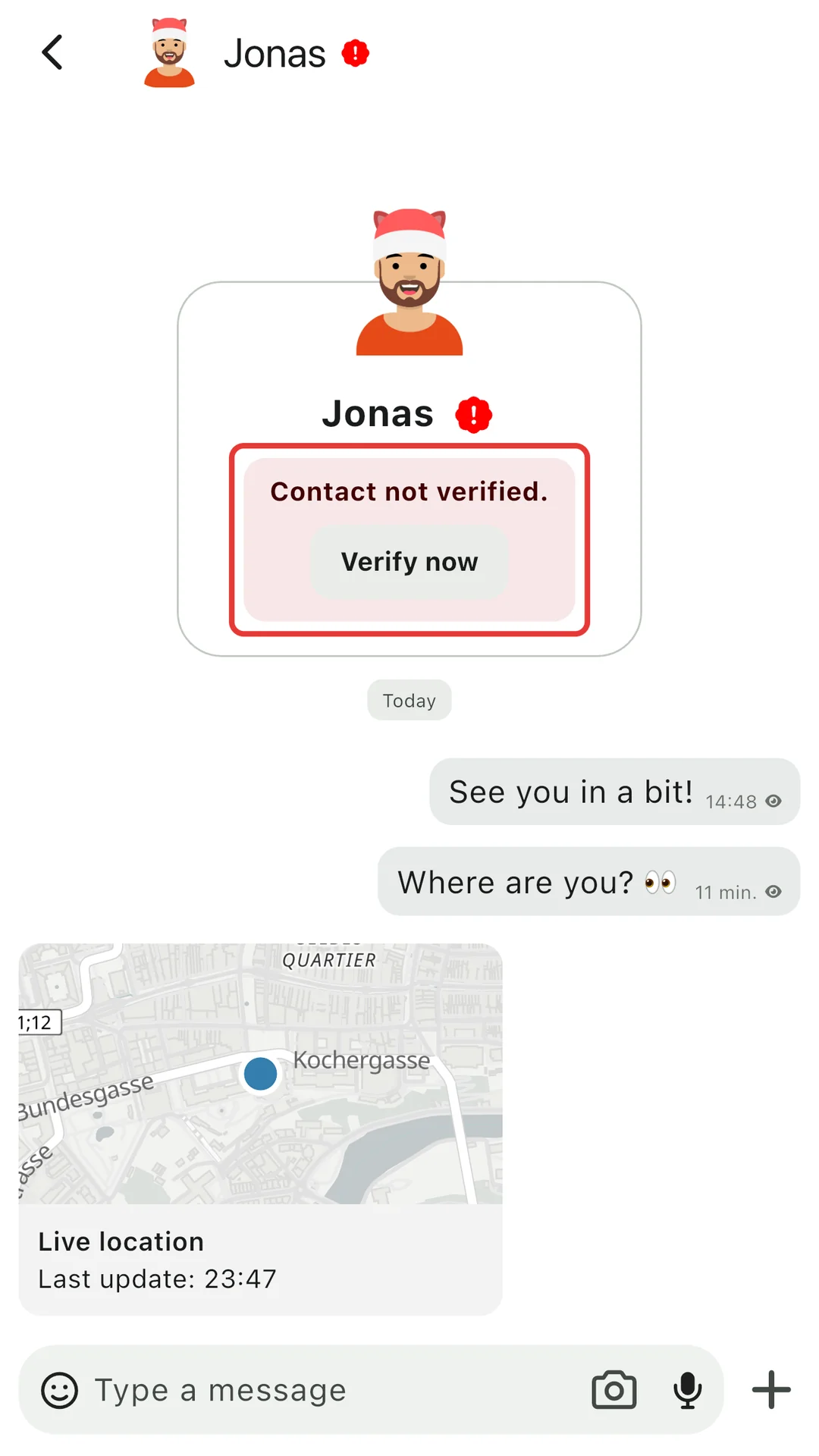
Where to find it: Tap the badge next to a name, or tap Verify now in a chat with someone you haven’t verified yet.

The twonly Verification overview. A green badge for contacts you verified with the QR code, a blue one for contacts verified by one of your contacts, and a red one for contacts not verified yet.
Green, blue or red
A twonly chat with a contact who is not verified yet. A red notice with a Verify now button is marked with a red frame.
Verify right from the chat

Support twonly

Plans

twonly is free, without ads and without selling your data. The servers are funded by the people who subscribe.

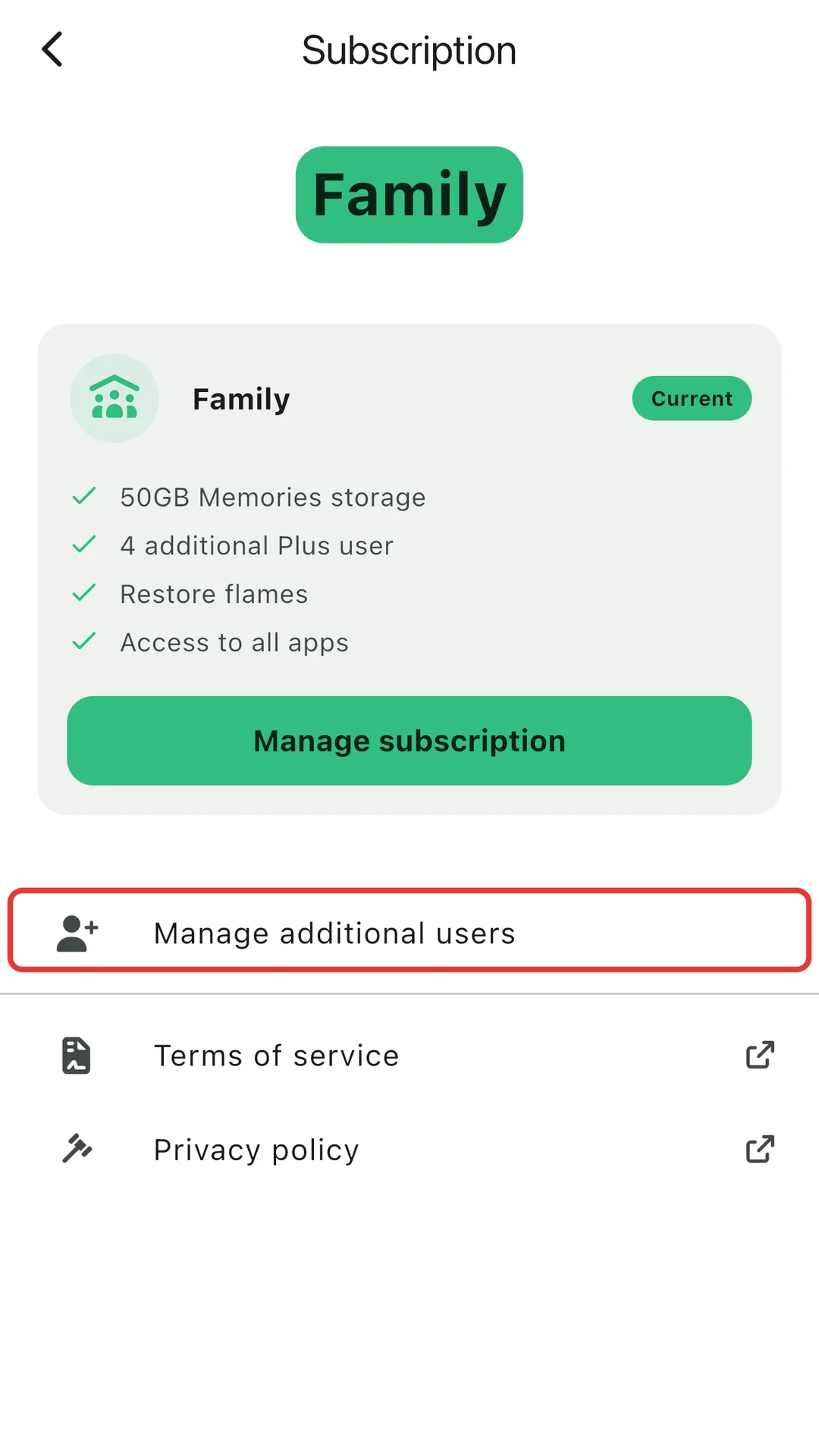
A plan adds end-to-end encrypted storage for your Memories, including an import of your Snapchat Memories. With Pro you can add 1 more person to your plan, with Family 4.

Where to find it: Settings > Subscription.

The twonly subscription screen with the current Family plan. The entry Manage additional users is marked with a red frame.
Your plan and additional users

Help shape what comes next

Have an idea or found a bug? Use the feedback option in the app or email me. Your feedback helps shape what I build next.

Let's go!